
The Email Templates is a feature using which you can customize various emails that are sent from your webstore such as Account Activation, New Account – B2B/B2C, Forgotten Password, and Successful Order Confirmation.
This feature may not be available on your web store, so reach out to commercebuild Customer Success to ensure the module is activated. There is no additional charge for this feature.
Getting Started
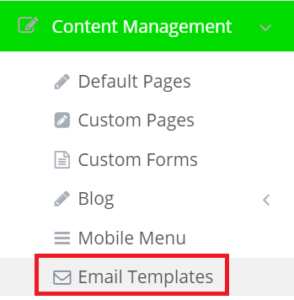
Once the feature is enabled, it is shown in the admin dashboard under the Content Management panel.
On the Email Templates screen, click New Email Template to create a new email template.
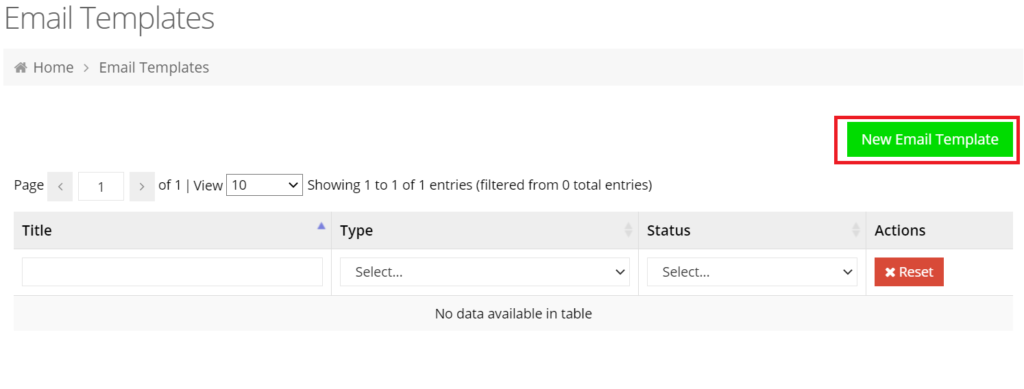
Add New Template
The following steps describe how to create different email templates:
- On Add New Template screen, enter a title and choose a template from the Type dropdown and click Save.

- The next screen, Edit Template offers features to add and customize the content by leveraging Content Grid functionality. You can preview the design by clicking the Preview button. When you are convinced the design and content look good, you can toggle on the Published button to publish the email template which will replace the old system-generated email.

- To begin with, click Add Container which will create a container to add the content. By clicking Edit, you can adjust the number of columns it should occupy.

- Next, click the Edit Content button to add modules that are relevant to the selected email template. Once done, click Save to apply your changes.
This guidance outlines a basic approach to creating email templates. For a specific email, please see the next section and click on the relevant links to view the detailed steps.
Explore Different Templates
Different email templates have some compulsory modules which should be included. The following guidance will help create those specific email templates:
- Successful Order, see our tutorial on How to create an Order Confirmation email template.
- New Account – B2B or B2C, see our tutorial on How to create a New Account email template.
- Account Activation, see our tutorial on How to create an Account Activation email template.
- Forgotten Password, see our tutorial on How to create a Forgotten Password email template.