
A Core web store keeps two different customer records. An ERP A/R customer is the account in your ERP. A web store user is the person who signs in. One web store user can be linked to many A/R accounts. You do not need a separate login for each A/R account.
The screens below are from a sample store. Your customer codes and group names will be your own.
ERP A/R customers
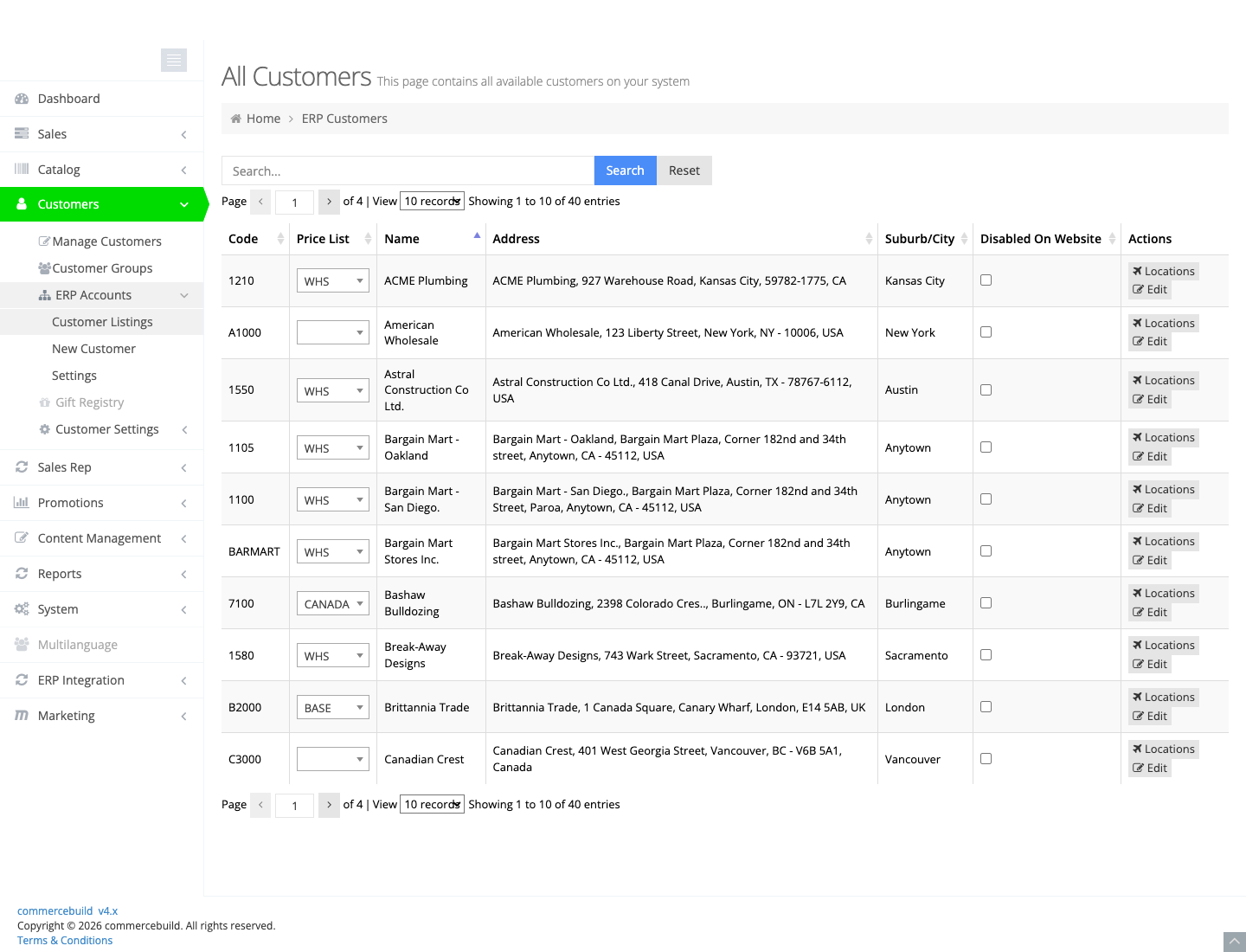
Go to Customers > ERP Accounts > Customer Listings. The page title is All Customers.
These records come from your ERP. Each row is a customer code, a name, and an address. Orders are placed against this account. Pricing, terms, and whether the account can be used on the web come from here.
Nobody signs in as an A/R customer. Finding a code on this list only means the ERP account is on the store. It does not mean there is a login for it.
Web store users
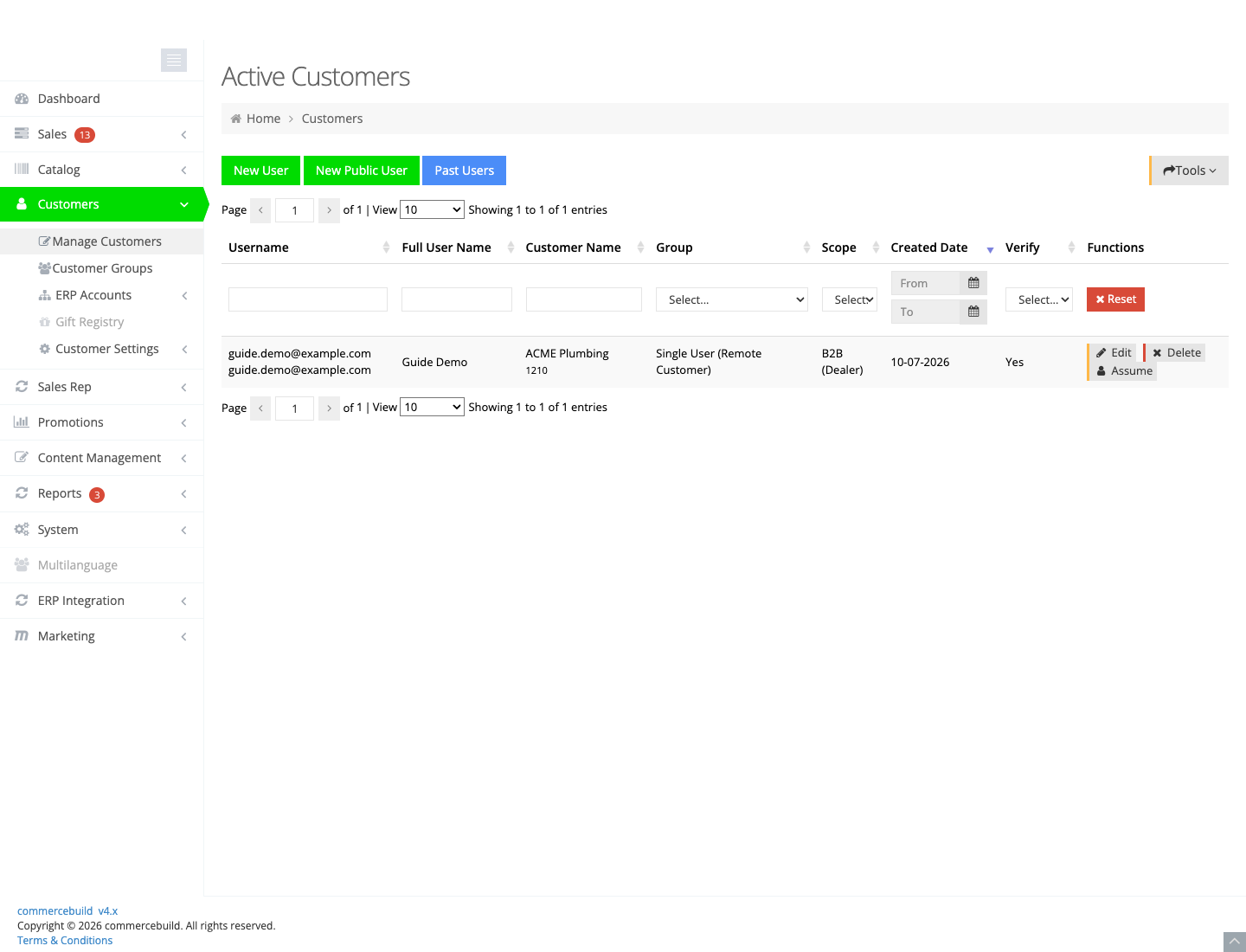
Go to Customers > Manage Customers. The page title is Active Customers.
This list is the logins. Each row has a username, a name, and a password on the user record. The Customer Name column shows the default A/R account for that login. It does not show a separate row for every A/R account linked to that person.
That is why a code can be on All Customers and still not appear as its own Active Customer. Open the web store user and click Link Customers to see every A/R account on that login.
The name and email on the Active Customers row belong to the web store user. Linking another A/R account does not change those fields to the contact on the A/R account.
Create a web store user
Use New User when this person should order on an ERP A/R account. New Public User is for a public login, not for an A/R account login.
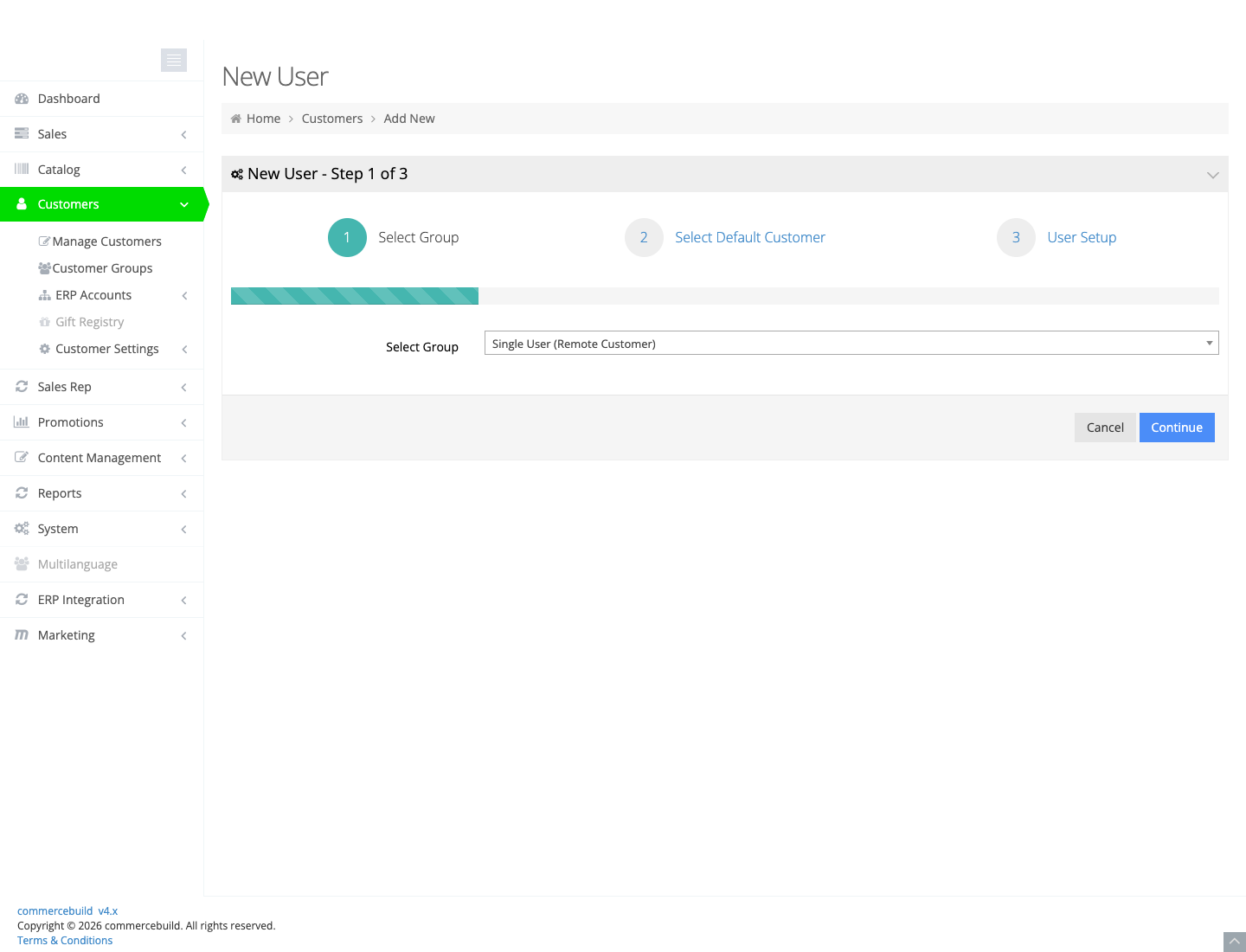
- Go to Customers > Manage Customers and click New User.
- Step 1: choose the customer group this person should belong to, then click Continue.
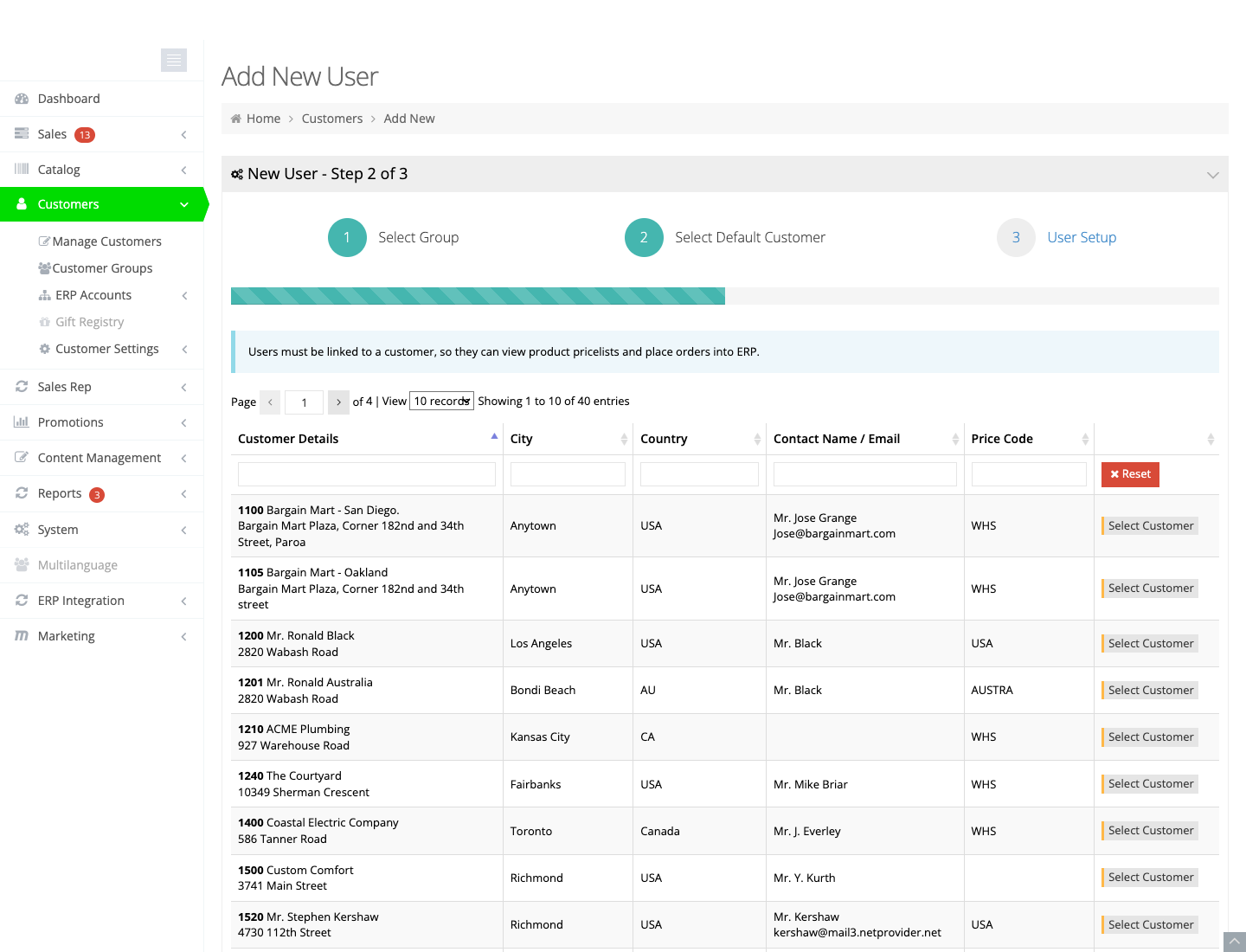
- Step 2: click Select Customer on the A/R account that should be the default. The user must be linked to a customer so they can see prices and place orders in the ERP.
- Step 3: enter the username, password, email address, and name. Choose a primary warehouse if that field is required. Leave Email Updates to User off until you want the store to email them. Click Continue.
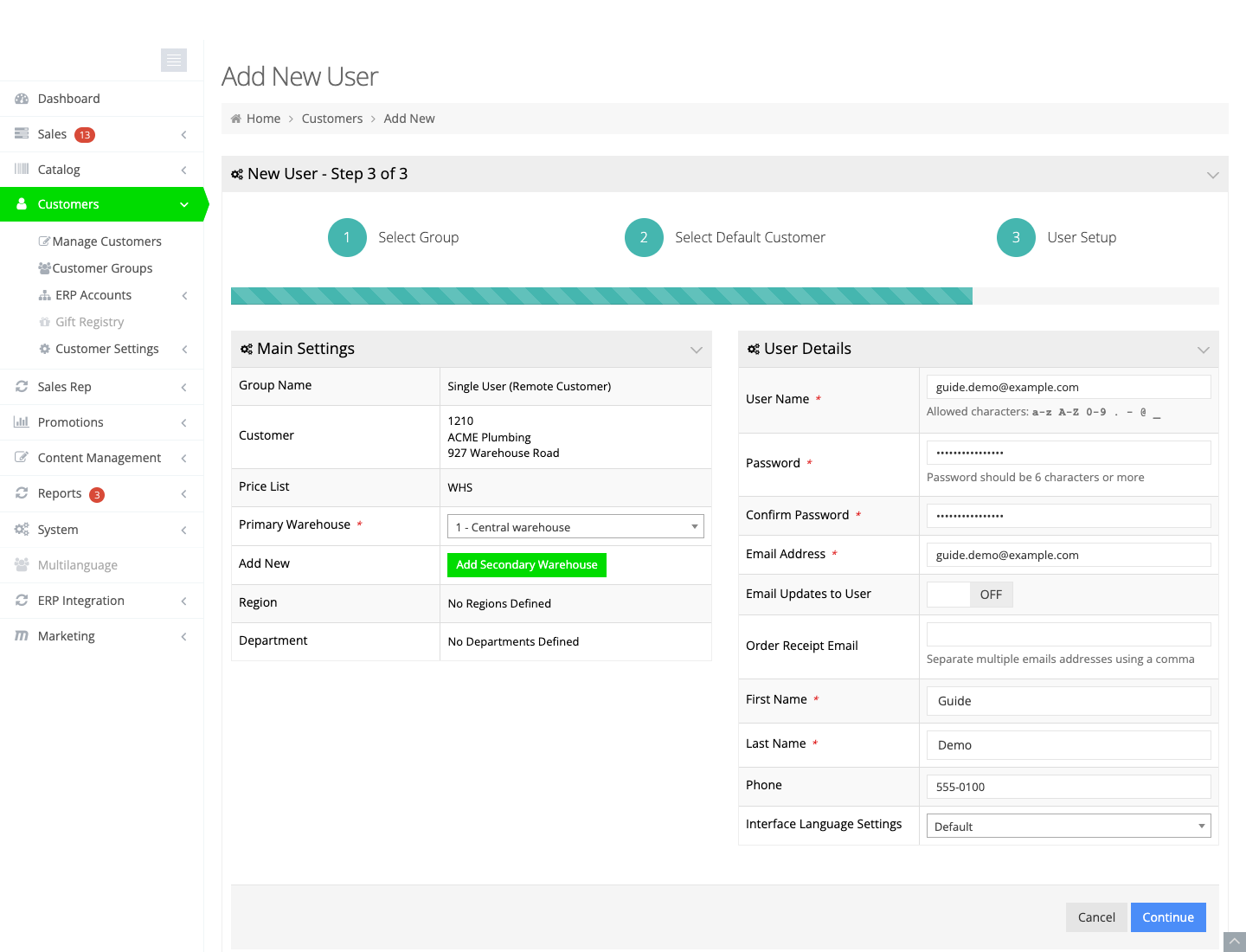
The new login then appears on Active Customers. The customer code on that row is the default A/R account.
Link more A/R accounts to the same login
One login can order for many A/R accounts. Edit the user. Under Customers you will see the accounts already linked. Click Link Customers.
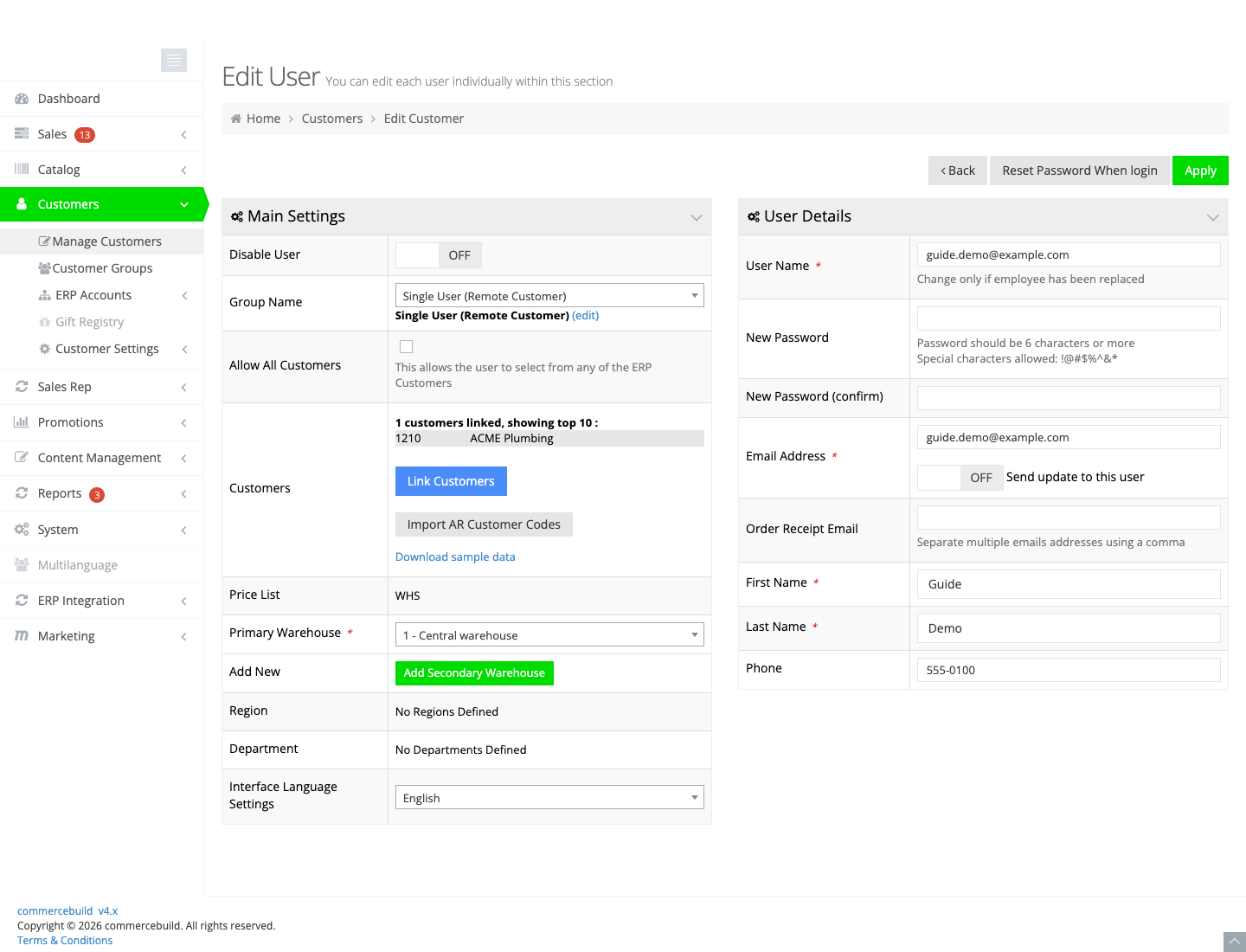
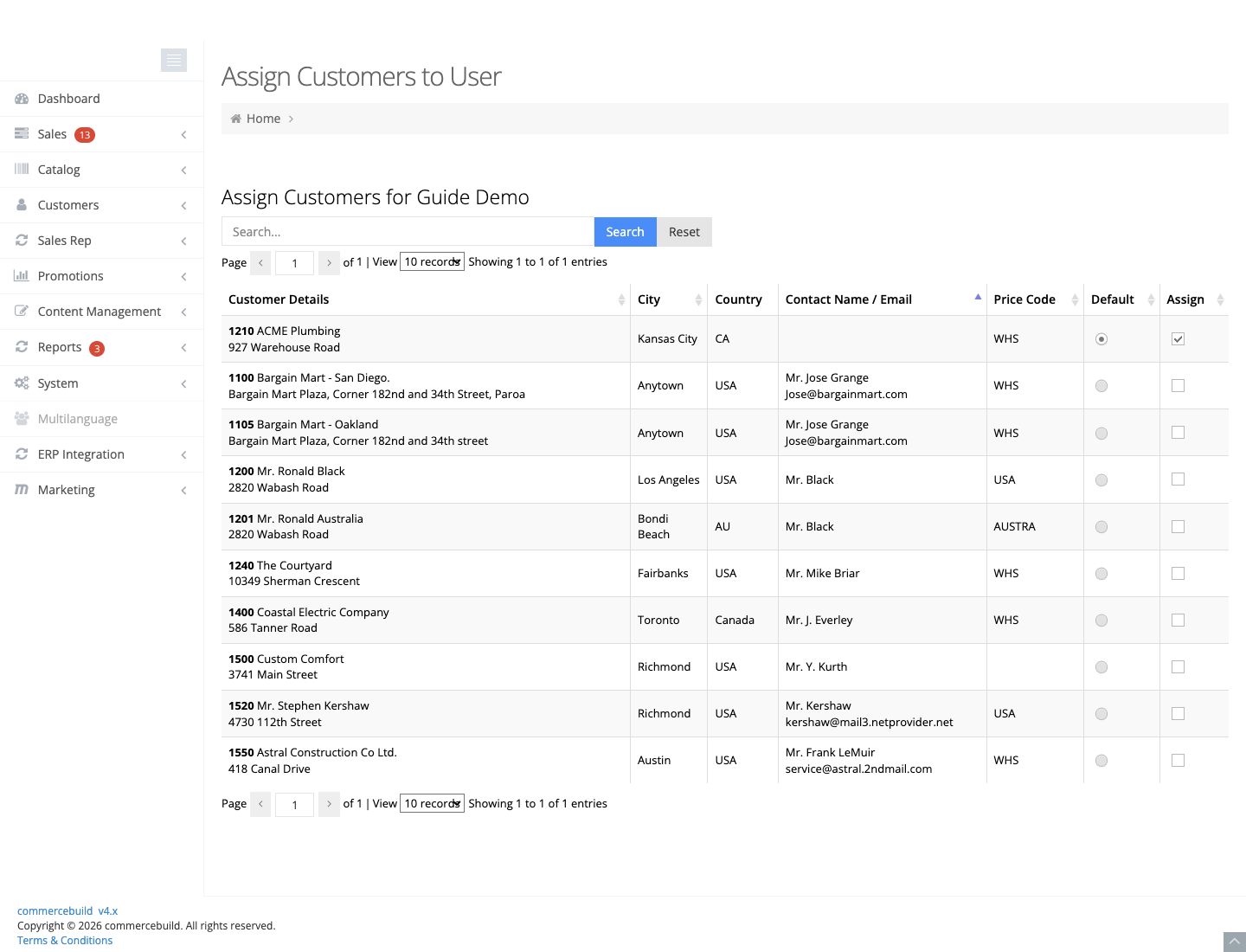
On Assign Customers to User:
- Search for the A/R account.
- Check Assign for each account this person should use.
- Select Default for one account only. That account is selected when they sign in, and it is the one Active Customers shows.
- Click Apply.
Leave Allow All Customers off unless this person should be able to choose any ERP customer, not only the accounts you assigned.
If you have a long list of codes, use Import AR Customer Codes on the Edit User page. To review every login and the A/R accounts linked to it, open Active Customers and use Tools > Export.
Remove one A/R account
Disable User turns off the whole login. Use it only when this person should no longer sign in.
To take one A/R account off a login that should keep working:
- Edit the web store user and click Link Customers.
- Select a different account as the Default.
- Uncheck Assign for the account you want to remove.
- Click Apply.
Do this before you retire an A/R account that is still the default, so the person still lands on an account they can order with.
To retire the A/R account itself, deactivate it in your ERP, or mark it not available for the web. After the store syncs, that A/R account is removed from the store and unlinked from the login. The web store user stays, and it stays linked to the other A/R accounts. Deactivating the default A/R account does not disable the login. Change the default first.
Turn a login off, and turn it back on
On Edit User, turn Disable User on and click Apply. The login leaves Active Customers and moves to Past Users (the button on the Active Customers page).
The other A/R accounts are not deleted. They remain under ERP Accounts. They drop off Active Customers because that list is logins, and this login was the row they appeared under.
To turn the login back on, open Past Users, click Edit, and click Activate. The login returns with the A/R accounts it had.
Related
How to re-link your B2B user to a different ERP A/R account
Need further assistance? Email support@commercebuild.com