
Overview
The commercebuild Tickets Portal is a centralized hub where you can easily access and manage all your support and implementation tickets. From here, you can see any tickets currently in progress, review past conversations, and reply directly, all in one place.
Accessing the Portal
The Tickets Portal is available at: https://tickets.commercebuild.tools
Login Access
- Each company has their own dedicated login credentials to access their specific tickets
- Login credentials are created by request
- To request access, please contact support@commercebuild.com
Using the Portal
Fetching Tickets
- Log in to the portal using your company credentials
- If you want to view all your tickets, even those that have been closed, check the box next to “Include Closed Tickets”
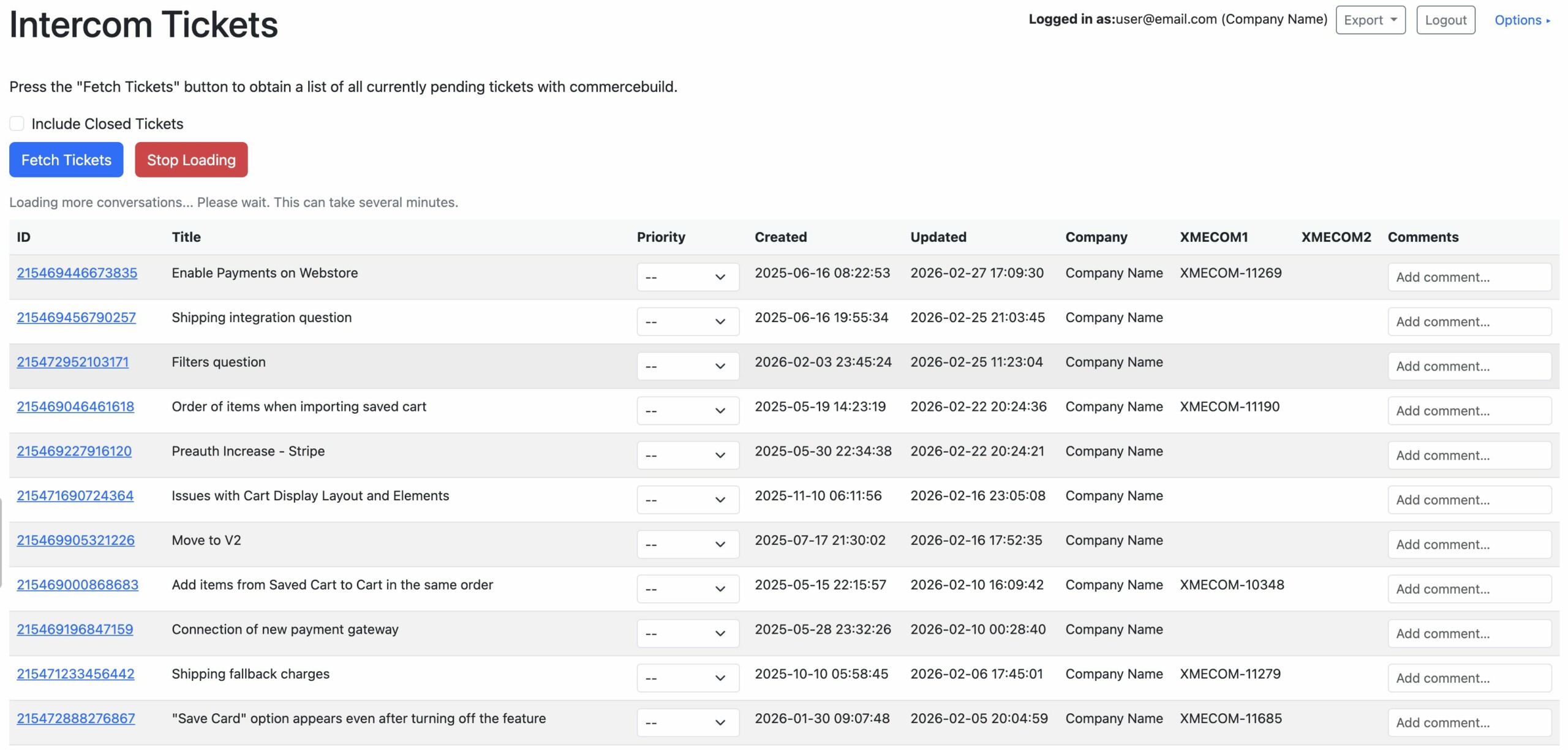
- Click the blue “Fetch Tickets” button to retrieve your current tickets
- Note: The initial fetch process may take several minutes to complete as it retrieves data via the API
Viewing Tickets
Once loaded, you’ll see a table displaying:
- Ticket ID
- Title
- A dropdown to select a priority of your tickets
- Creation date
- Last update date
- Company information
- Reference numbers (XMECOM1, XMECOM2)
- Additional information
You can also select which columns are displayed by clicking the “Options” link in the top right corner.
Important Features
- Results Caching: Ticket results are cached in your browser
- If you navigate away from the page and return, your previously fetched tickets will still be displayed
- To see newly updated information, you must click “Fetch Tickets” again to refresh the data
- Ticket Priority: Allows you to prioritize your open tickets. Your higher priority tickets will be checked before ones you’ve set to a lower priority.
Viewing Conversations
To view the full details of a specific ticket:
- Locate the ticket in the list
- Click on the Intercom ticket number (ID) on the left side of the row
- The complete conversation will load in the section below the tickets table
Responding to Tickets
You can respond directly to tickets from within the portal:
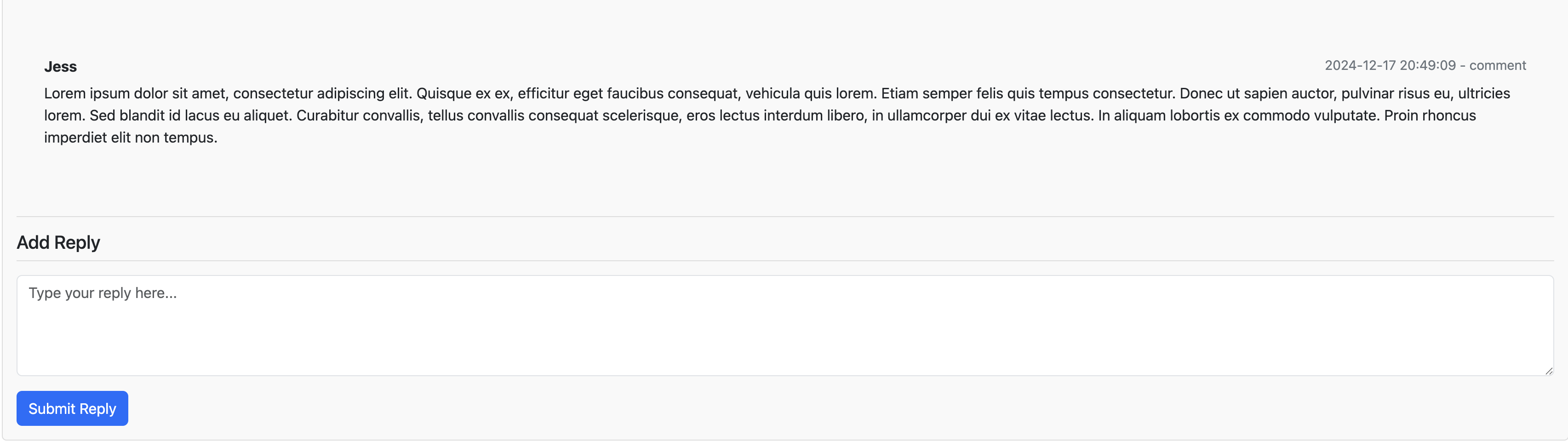
- Click on the ticket ID to load the conversation
- Scroll to the bottom of the conversation
- Type your response in the “Type your reply here…” field
- Click the “Submit Reply” button to send your response
Additional Support
If you have any questions about using the Tickets Portal or need assistance, please contact support@commercebuild.com.