
Some commercebuild stores have the ability to directly integrate with MailChimp and sync customer data and watch for event triggers. Please contact support, or your account manager, to inquire if this is a feature that can be set up in your store.
Create Your MailChimp API Key
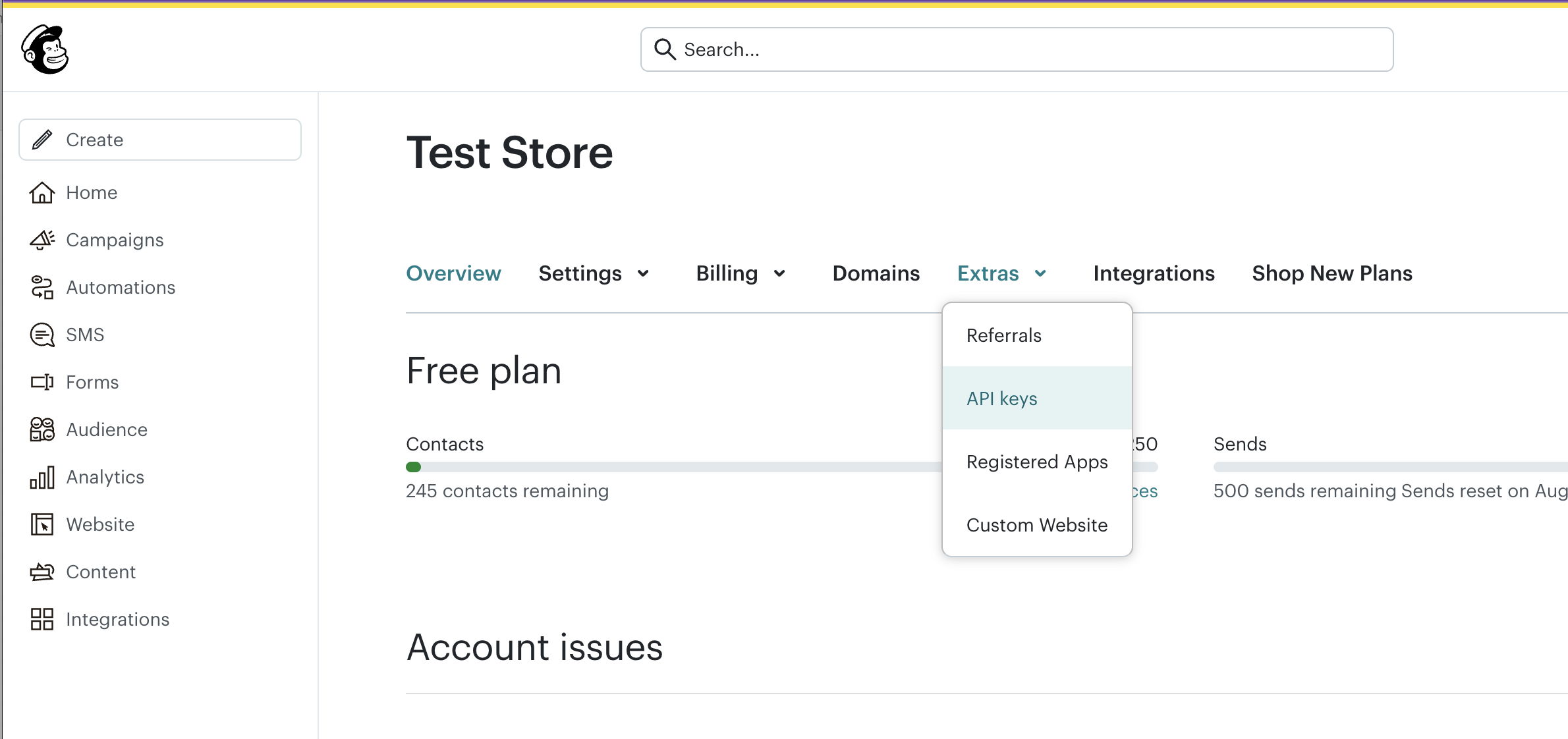
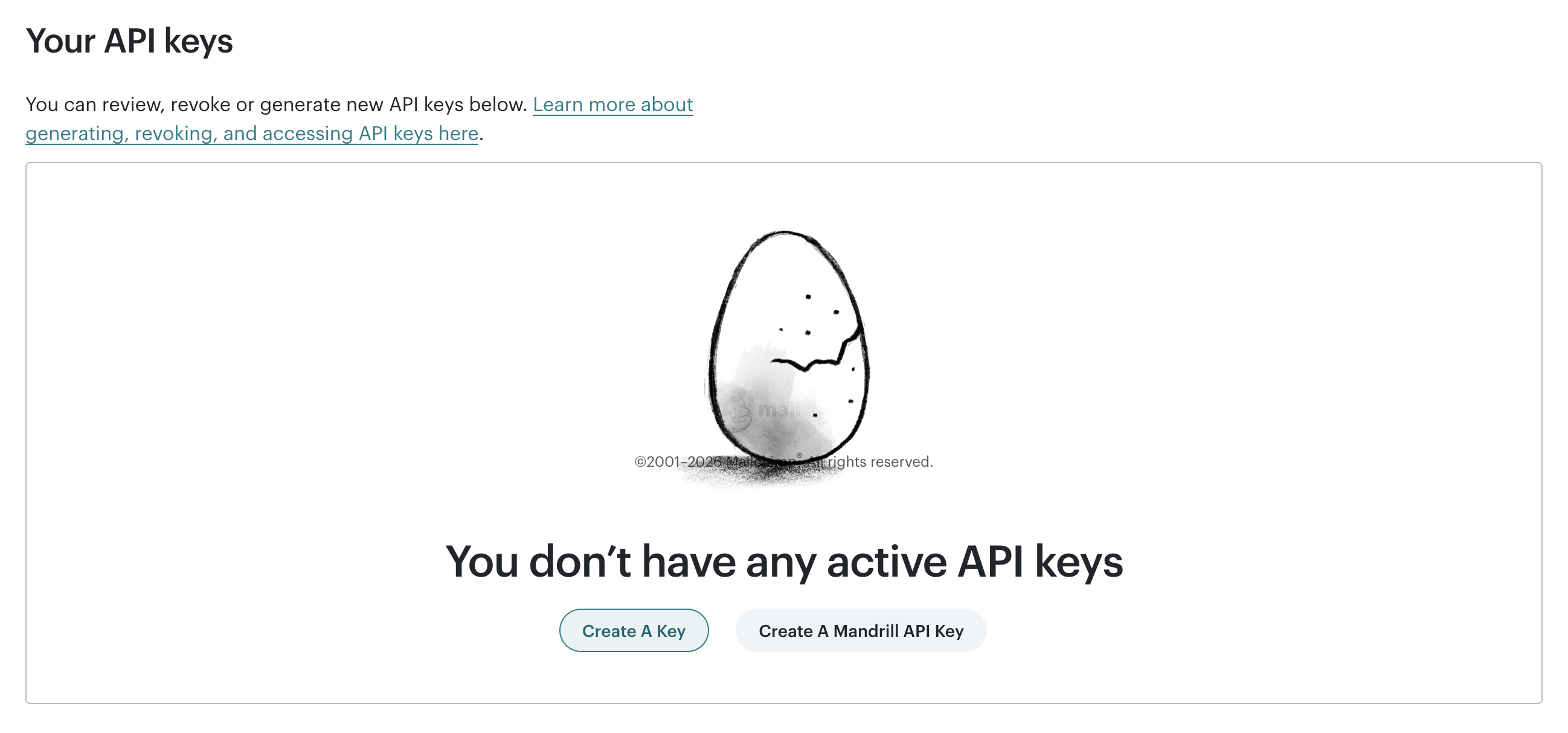
Log into your MailChimp account and generate a new API key under Account → Extras → API Keys. The key includes a server-prefix suffix (e.g. -us7) that identifies your Mailchimp data centre. You must use the full key including the suffix.
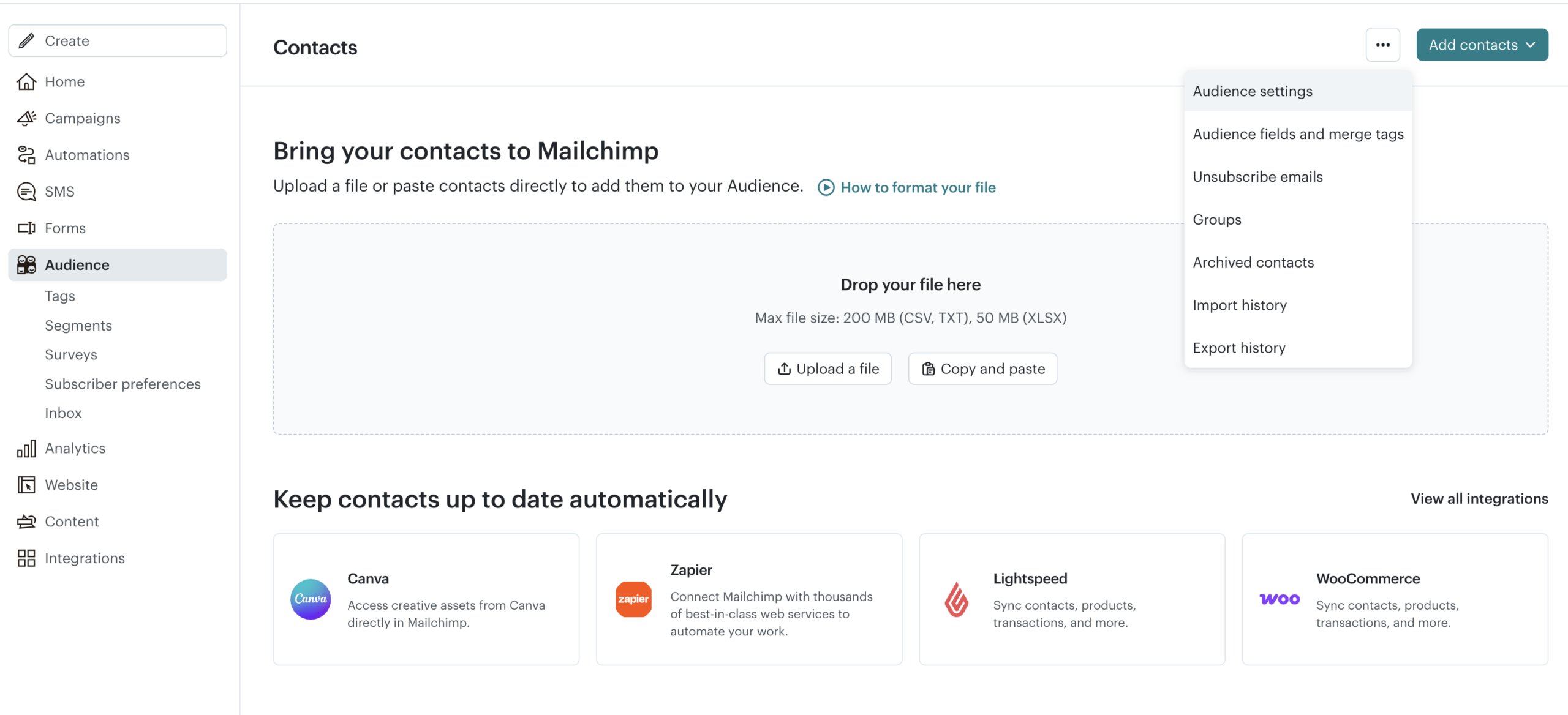
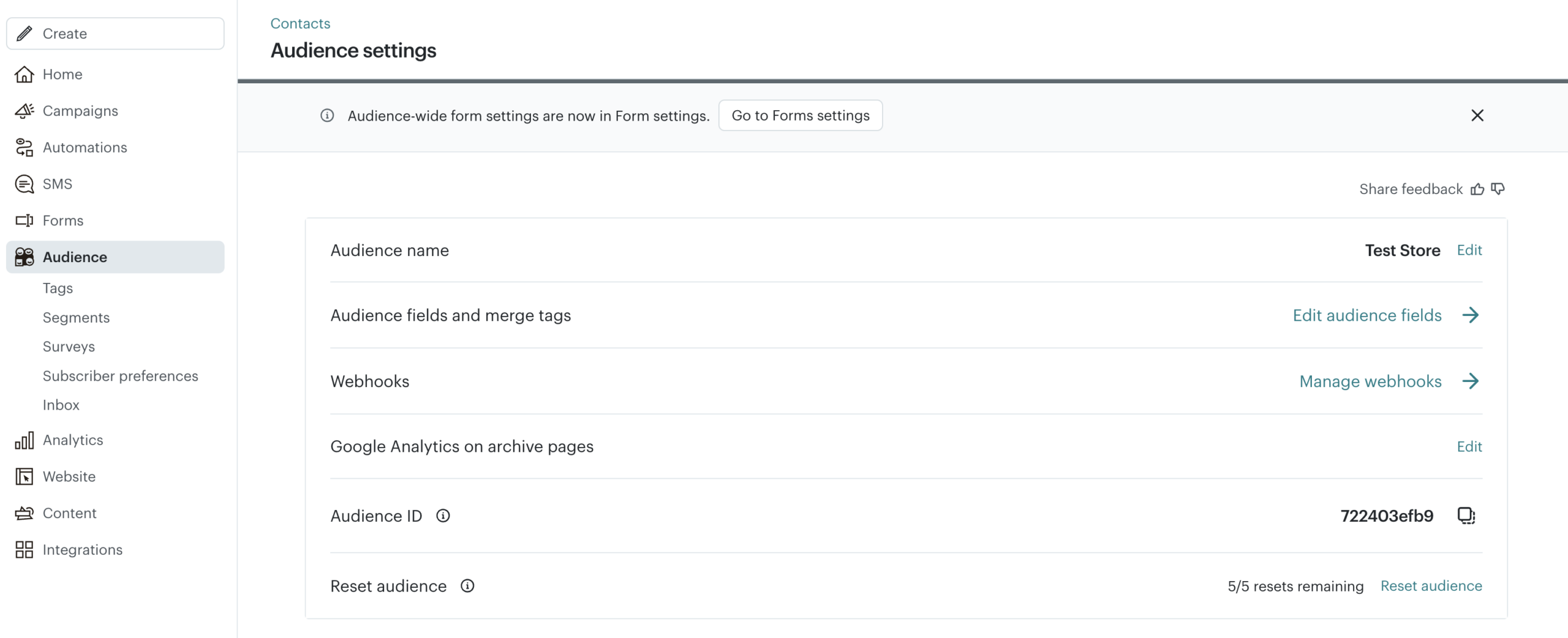
Next, locate your Mailchimp Audience ID. It's found under Audience → Audience Settings shown as Audience ID. Audience IDs are case-sensitive.
Enable In Your Webstore
Log into your store admin and navigate to Marketing → Marketing Integration. Select MailChimp and enter your API key and audience ID. Then press "Create".
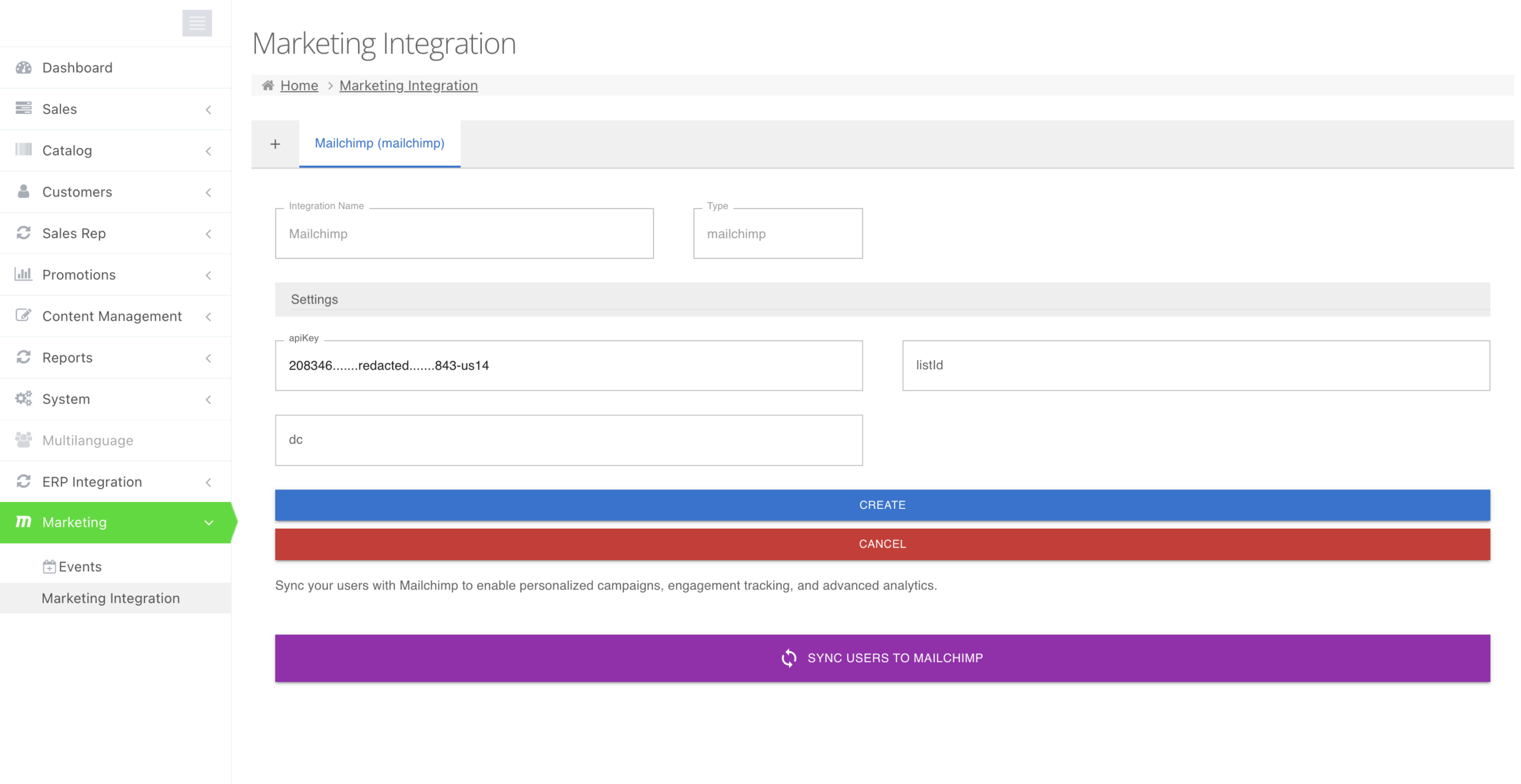
Once saved, click Sync Users to push all existing customer records to the Mailchimp audience as a one-time bulk import.
Using it day-to-day
-
When a customer creates an account or updates their profile, their record is synced to Mailchimp via a Create Member or Update Member call — no manual action required.
-
When a customer reaches the checkout payment step (started checkout), a Started Checkout event is sent. Use this event in a Mailchimp automation to trigger abandoned-cart reminder emails.
-
When a customer places an order, two events fire: Ordered Product (per line item, carrying product data) and Placed Order (carrying the full order summary). Mailchimp automations listening on these events can trigger post-purchase flows.
-
To check event delivery, review the integration activity log in Admin → Marketing → Integration or check Audience → Activity in Mailchimp.
Troubleshooting
-
500 error on Save — the API Key is missing its server-prefix suffix (e.g.
-us7). Copy the full key exactly as generated in Mailchimp; do not trim anything after the last hyphen. -
Contacts not appearing in the Mailchimp audience — confirm the Audience ID in the admin matches the audience in your Mailchimp account exactly (including capitalisation). If the ID is correct, trigger Sync Users again and check the integration log for errors.
-
Events arrive in Mailchimp but no automation triggers — confirm the automation is active (not in draft/paused state) and is listening for the correct event name:
Started Checkout,Ordered Product, orPlaced Order. -
Sync Users button does nothing — confirm the integration has been saved with a valid API Key and Audience ID first. If the issue persists, check the admin event log for a sync error.