
Overview
You can update the site logo shown in your webstore’s header and footer by uploading a new logo in Site Settings and then placing it inside the Header and Footer default layouts.
The logo file itself is stored centrally in your site configuration, but it will only appear on the storefront after it is added through the appropriate layout modules. This means updating the logo usually involves both uploading the file and confirming the Logo module is present in the Header and Footer layouts.
You can configure logos separately for B2B, B2C, or both storefront experiences depending on how your site is set up.
This guide walks through the complete process required to upload, place, and update your logo so it displays correctly across your webstore.
Step 1: Upload the Logo in Site Settings
- Go to System → Site Settings
- Click on Select Image to upload the image from your local machine.
- Click on Apply to save your changes.
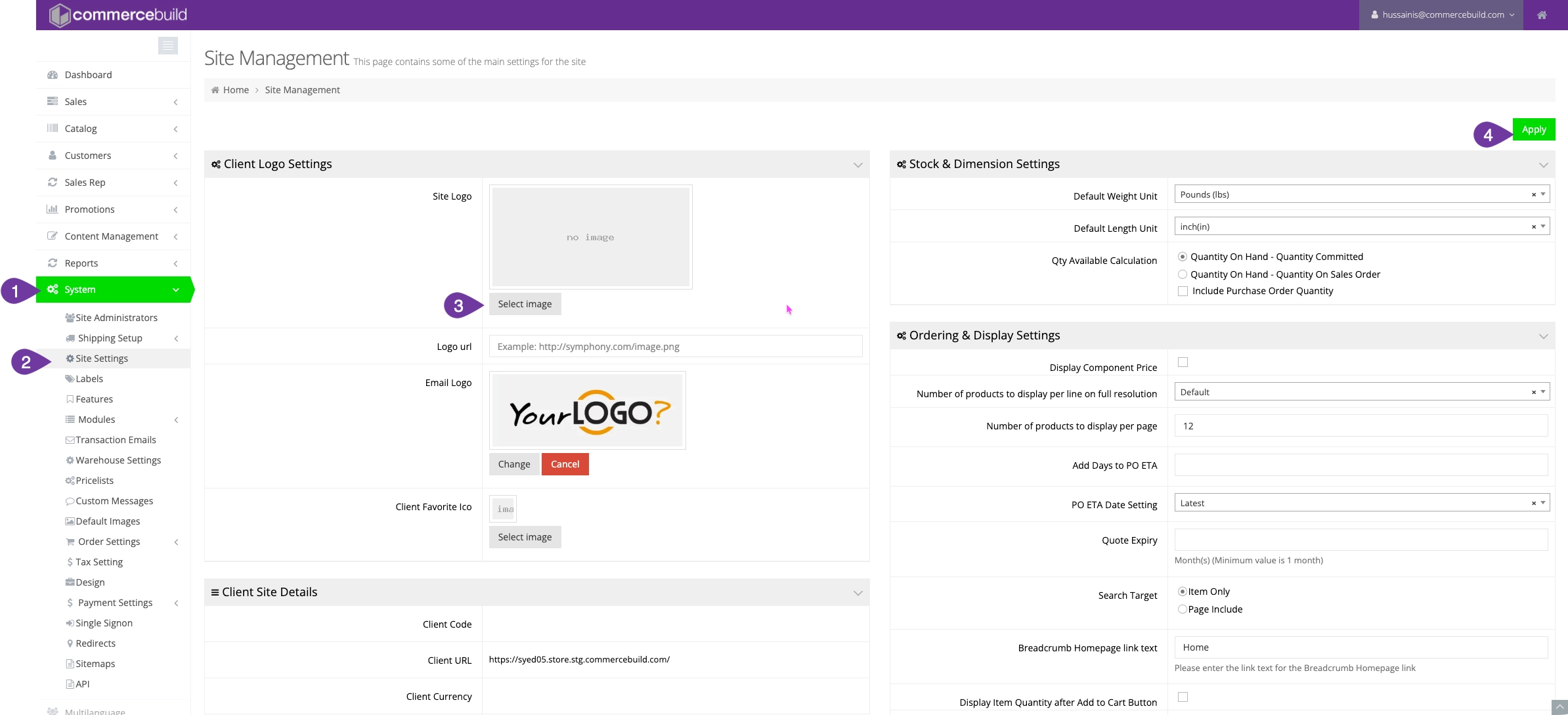
Your logo should now be available for use through logo module on site pages.
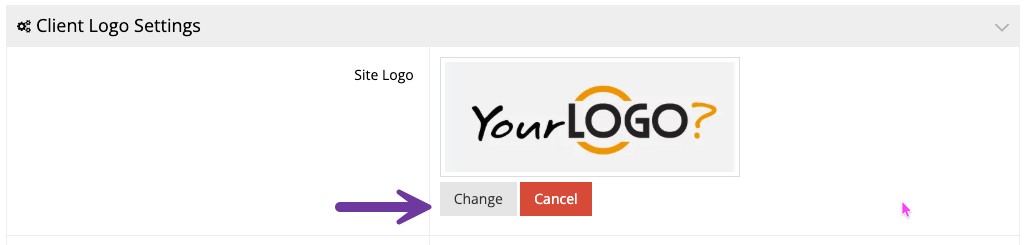
If the logo is already uploaded, and needs to be updated, you will see a Change button on the same place that shall allow you to upload a new logo as shown in the screenshot below:
Step 2: Add or Update the Logo in the Header
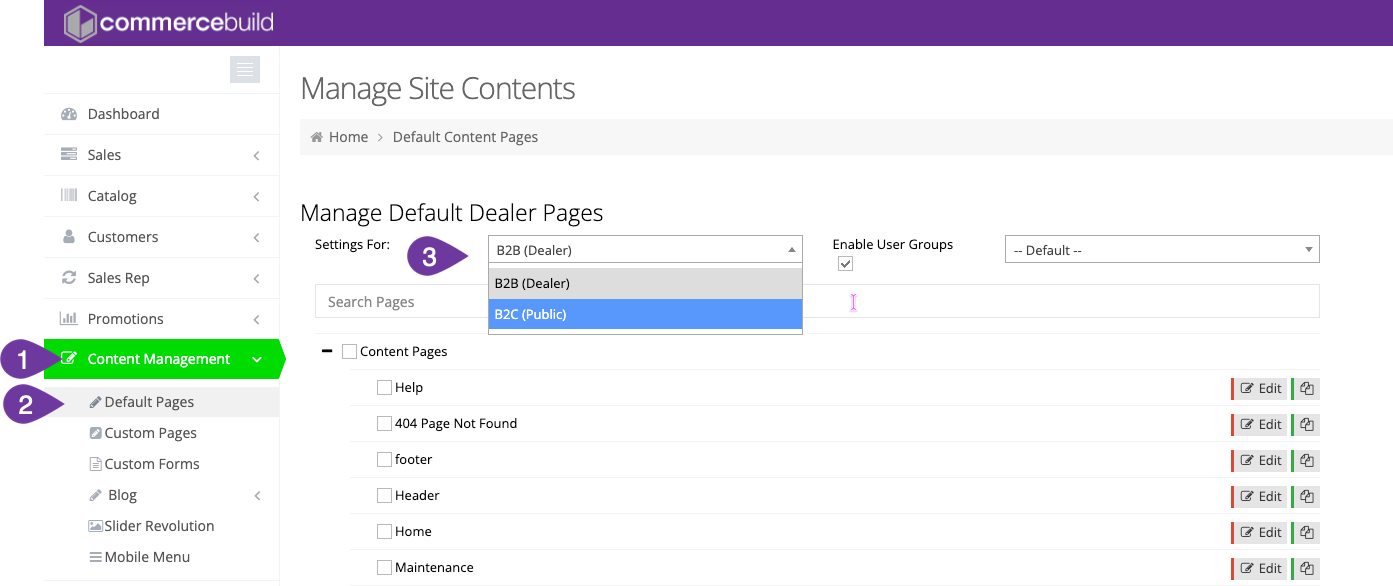
- Go to Content Management → Default Pages
- Open the Header page for the storefront you want to update:
- B2B, or B2C Header
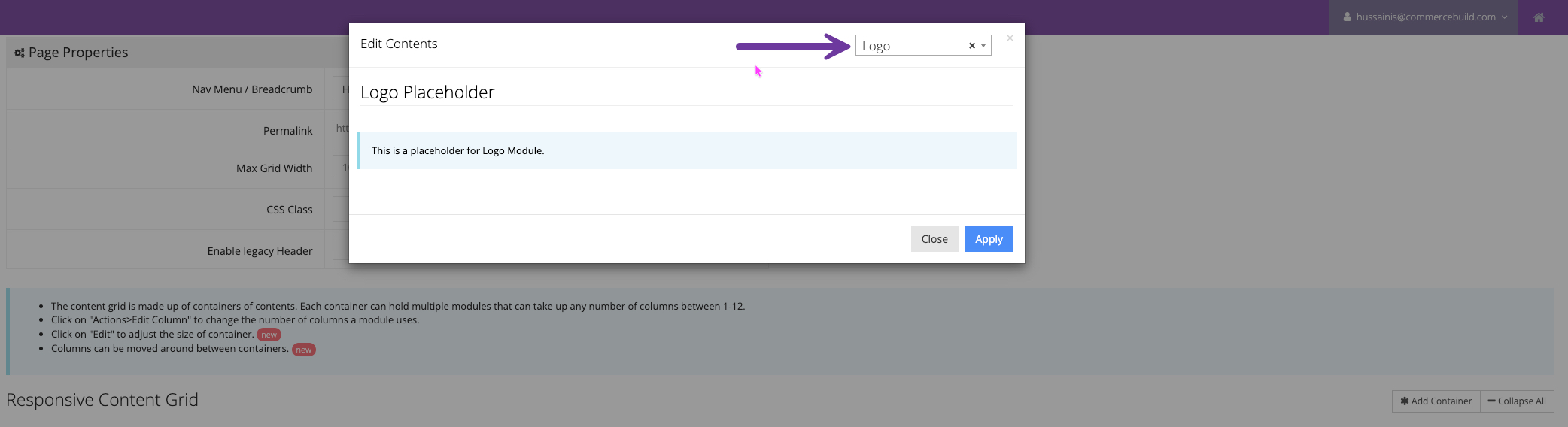
- Locate the Logo module in the layout.
- If the Logo module is missing:
- Add a Logo module
- Place it in the desired position within the header
- Click Apply on the top right to save the changes
Check out this guide to learn more about adding/managing content modules.
Step 3: Add or Update the Logo in the Footer
- Stay in Content Management → Default Pages
- Open the Footer page for:
- B2B or B2C Footer
- Locate or add the Logo module.
- Click on Apply to save the changes.
Step 4: Verify the Logo on the Storefront
Open your storefront and refresh the page to confirm the updated logo appears correctly.
If the logo does not appear immediately, clear your browser cache and reload the page.