
Please Note: Klaviyo is a paid add-on and requires certain upgrades to your commercebuild store. Please reach out to the support team if you have questions.
In this guide we will review the steps involved in connecting your commercebuild store to your Klaviyo account, and configure a product feed.
The first step is to sign up for a new account if you don't already have one: https://www.klaviyo.com.
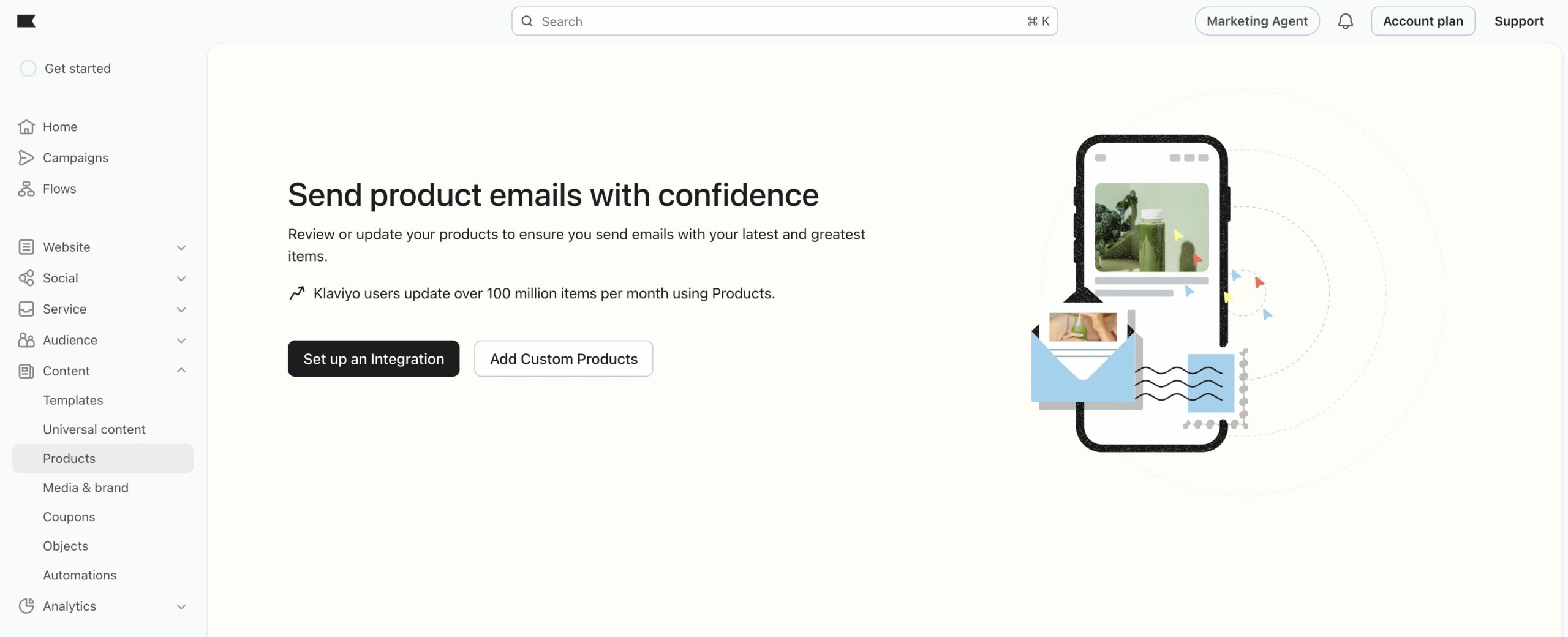
Once signed up, go to Content → Products. Click on the "Add Custom Products" button.
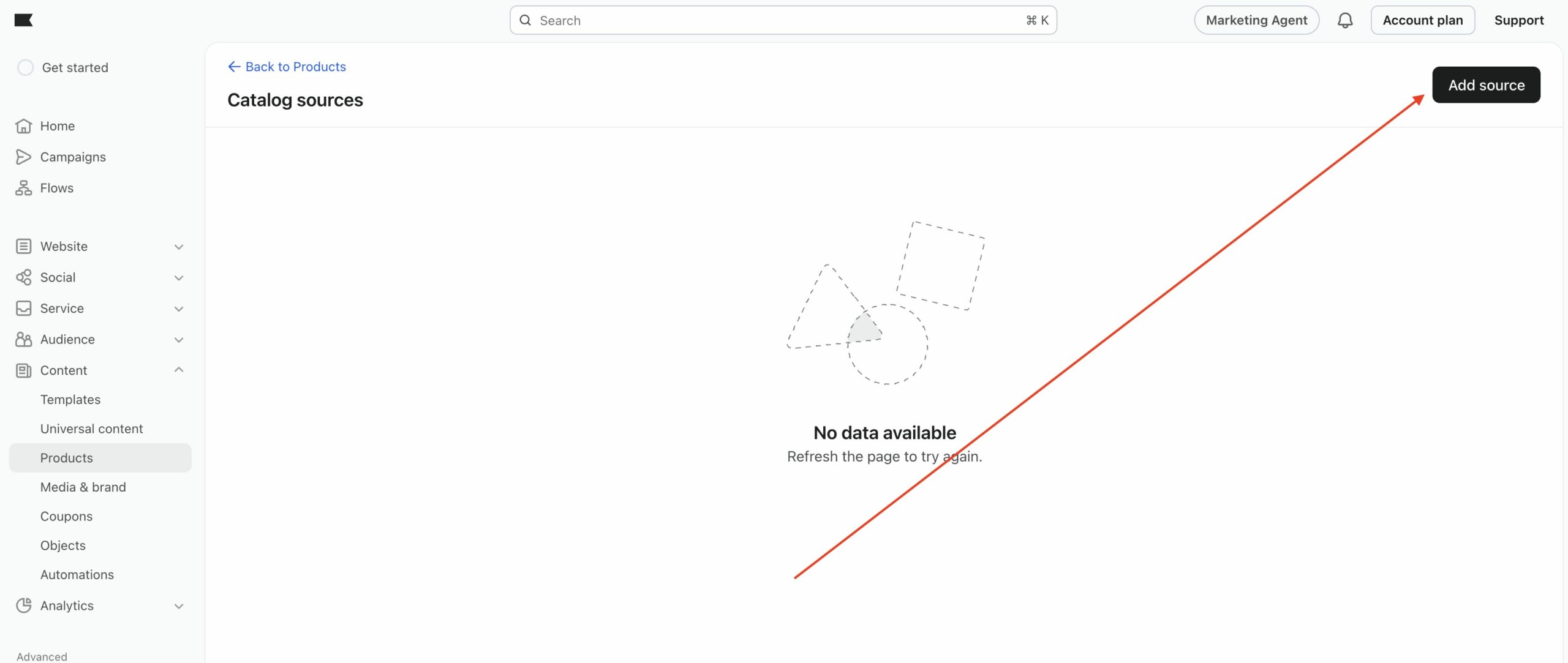
Click "Add Source"
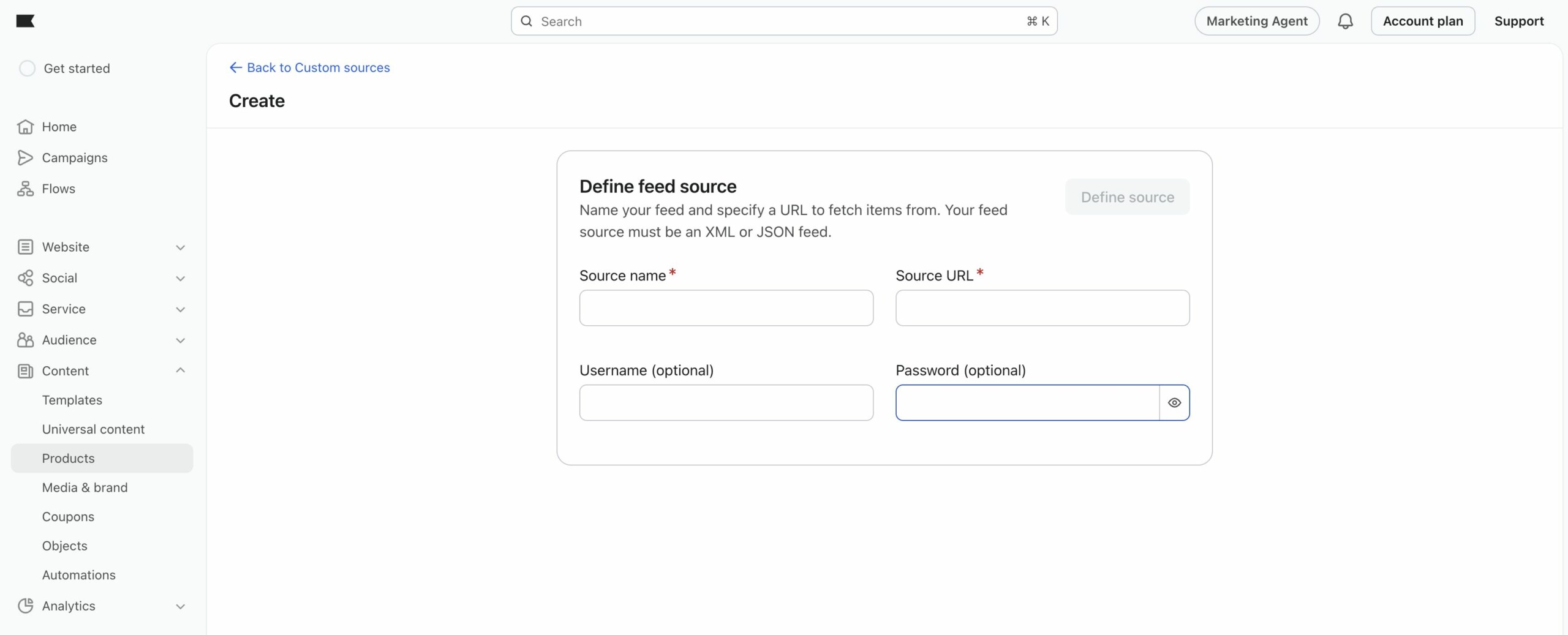
In the "Define Feed Source" form you will need to enter the source name "Commercebuild" and the Klaviyo source URL for your commercebuild store. We will show you where to obtain that in the next screenshot.
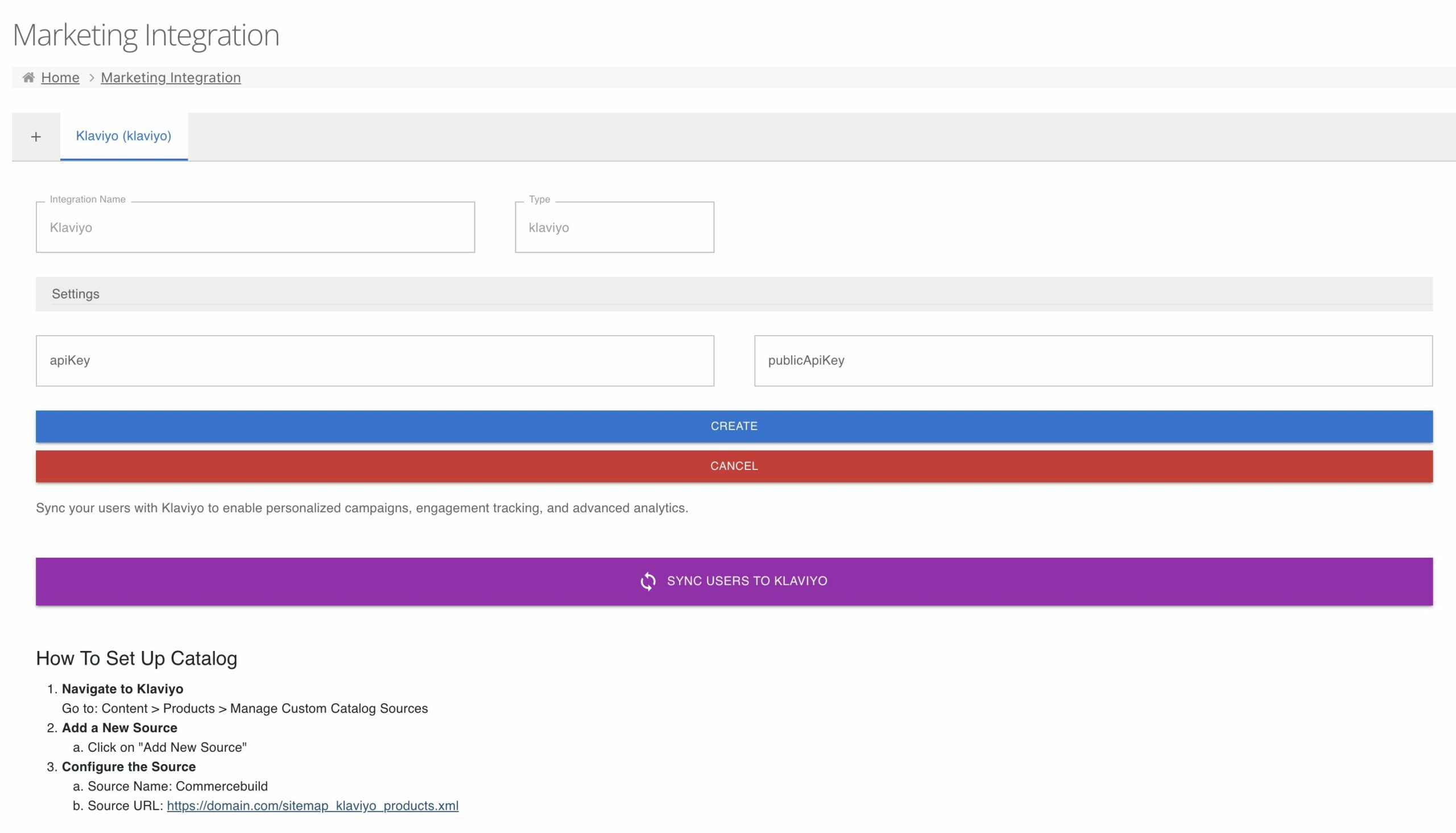
In your web store admin, navigate to "Marketing → Marketing Ingetration" /admin/mmarketing/integration/. Open the Klaviyo option. Your Klaviyo feed source URL can be found at the bottom of the page.
Once you submit your feed source, it will be in a "Pending" state for a minute or so while the source is validated.
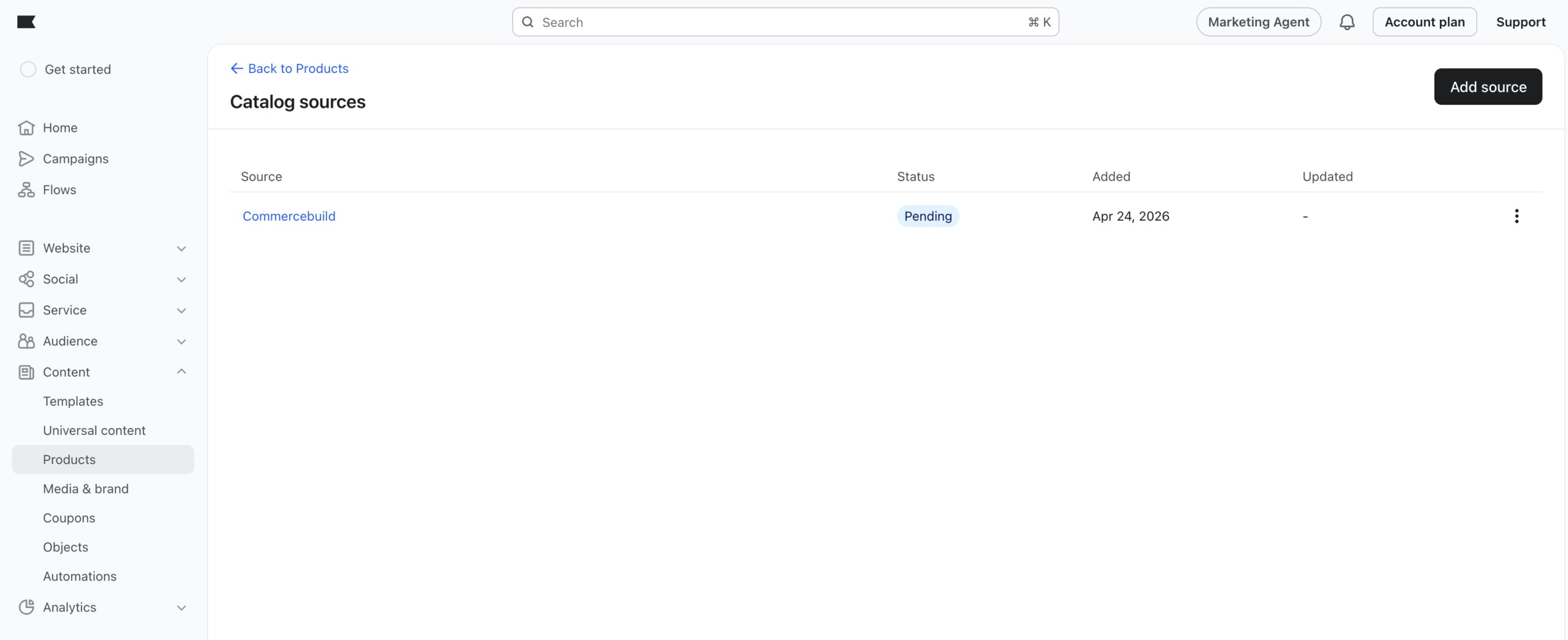
Once validated, you can click into the source name.
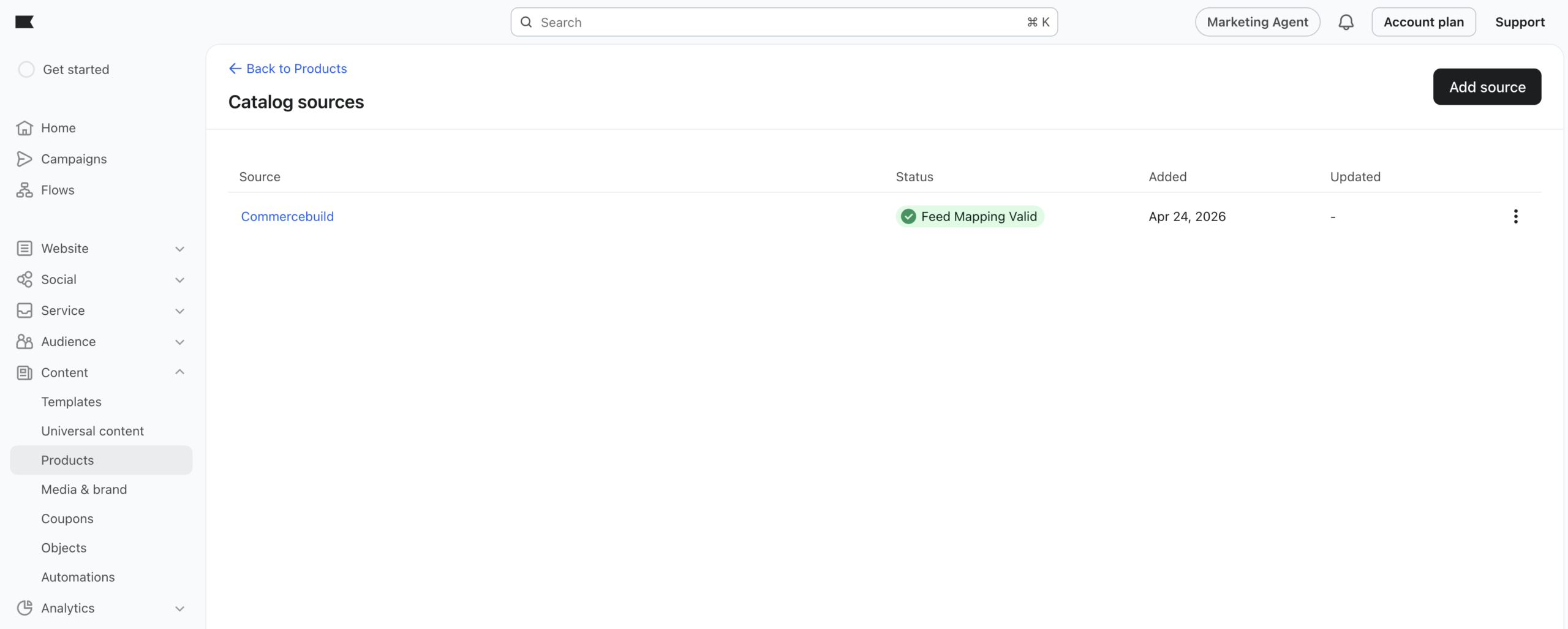
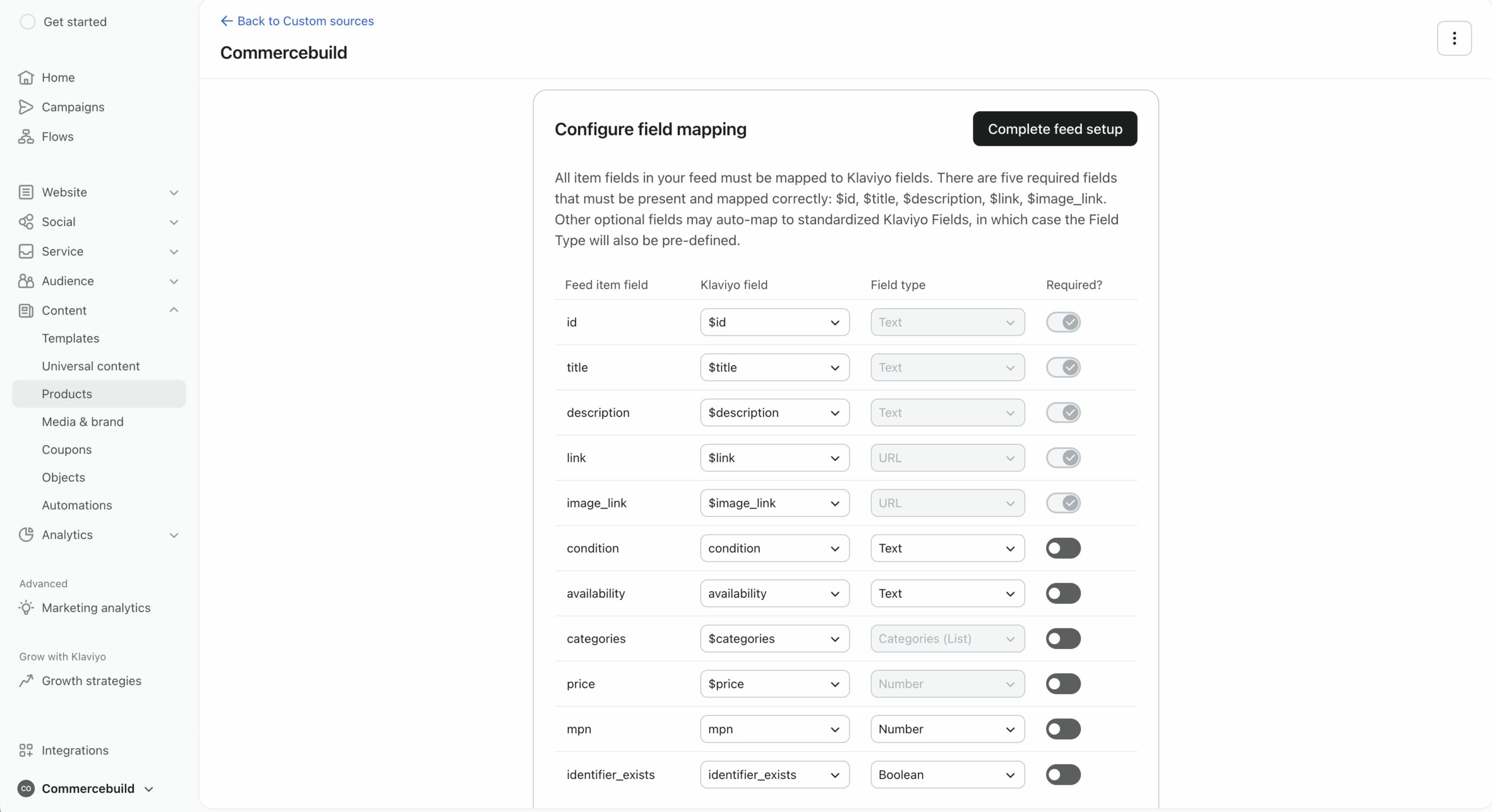
Next, click on "Complete Feed Setup"
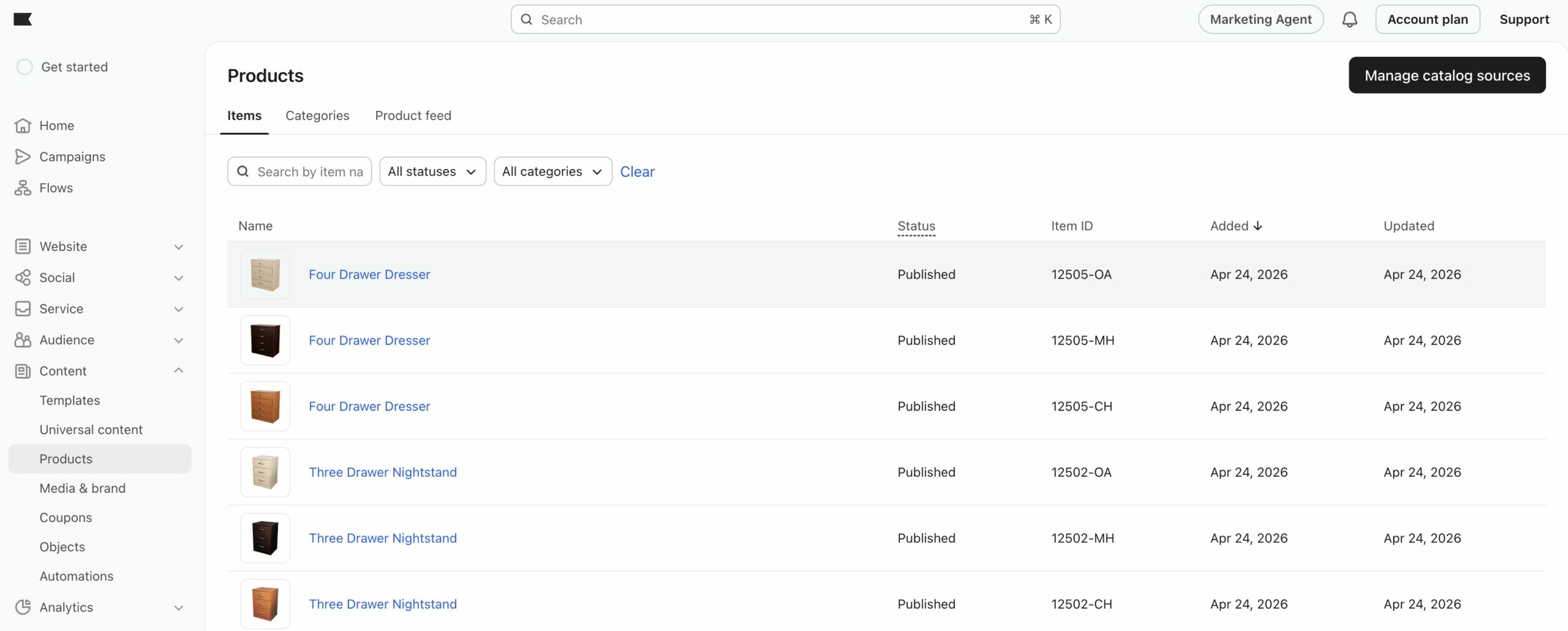
And now, you can navigate to Content → Products and see your web store's products within Klaviyo.
Klaviyo Guides
Some guides from Klaviyo that you might find useful after having configured your web store connection.