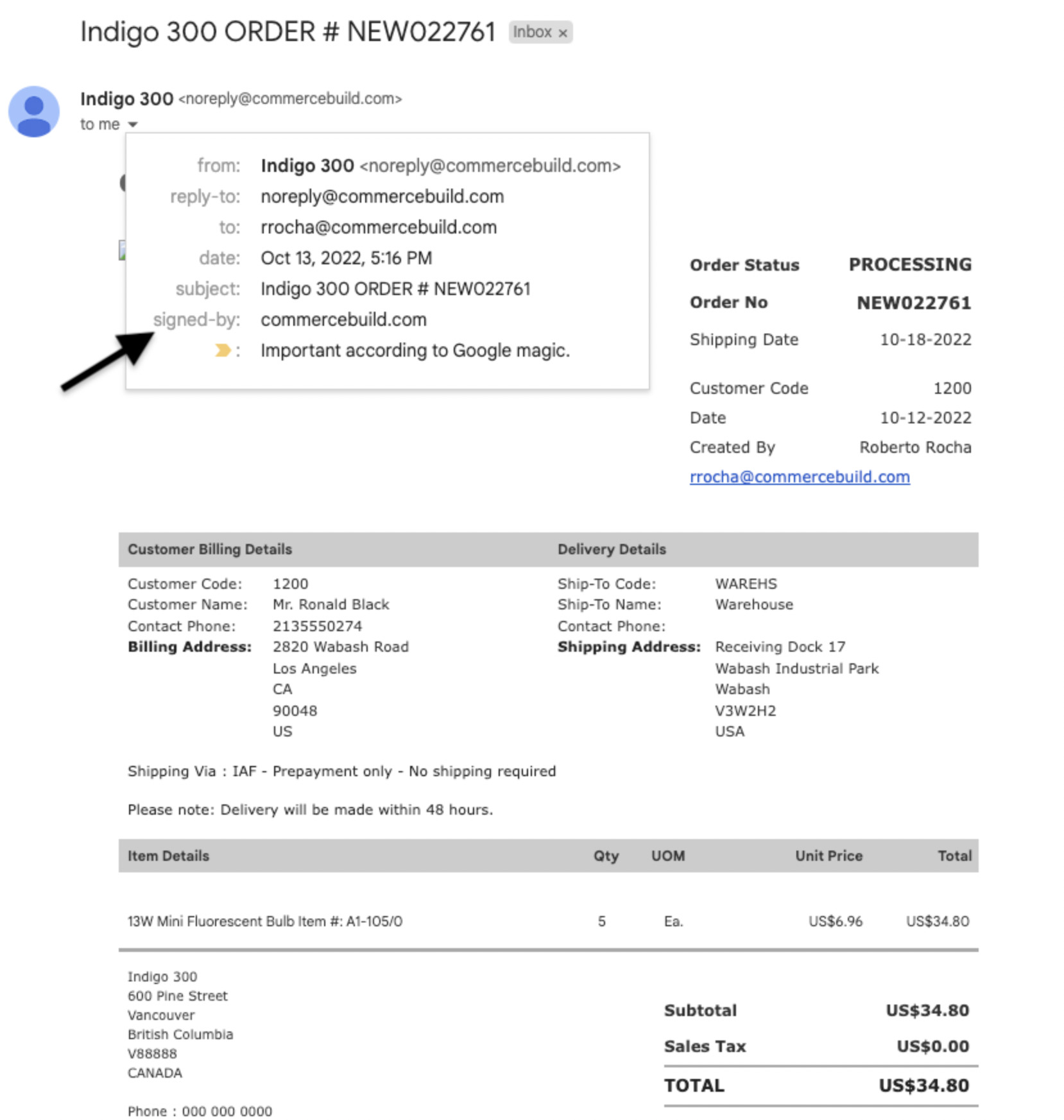
Your store sends order confirmations, password resets, and other messages on your behalf. We send them from our mail server, mail.mysagestore.com. Your domain has to say so in DNS, or inbox providers may treat the messages as suspicious.
DNS changes can take up to 72 hours to appear everywhere, and they are often faster. If the check does not show the new record yet, wait and try again. You can also watch the update with DNSChecker.
Two TXT records do this work:
- SPF names the servers allowed to send mail for your domain.
- DKIM lets the recipient check that we signed the message and that it was not changed on the way.
Add them wherever your domain's DNS is managed. That may be your registrar, Microsoft 365, Cloudflare, or the person who looks after the domain.
Check my domain for SPF and DKIM
Enter the domain your store sends from, then press Enter.
SPF records
SPF (Sender Policy Framework) is a TXT record that lists who may send email for your domain. Keep a single record that starts with v=spf1. A second one makes the SPF check fail. Add our server to the record you already have.
Our outgoing server is mail.mysagestore.com. Add it as include:mail.mysagestore.com.
You already have an SPF record
A Microsoft 365 record often looks like this:
v=spf1 include:spf.protection.outlook.com -all
Add our server with the other include values, and keep the ending you already have:
v=spf1 include:spf.protection.outlook.com include:mail.mysagestore.com -all
If the record ends in ~all, leave ~all in place.
If the record contains redirect=, email the current value to support@commercebuild.com before you change it. That value points at another domain's SPF record.
You do not have an SPF record
Add one TXT record on the domain itself. In the host field, panels usually want @ or a blank value. Use this value:
v=spf1 mx a include:mail.mysagestore.com -all
mx allows the servers in your domain's MX records. a allows the server in your domain's A record. -all means any server not named in the record fails the SPF check.
After you save, confirm there is still one TXT record that starts with v=spf1.
DKIM email signing
DKIM (DomainKeys Identified Mail) adds a signature to each message. We hold the private key. You publish the matching public key in DNS. The recipient reads that key and checks the signature, which shows the message came from your domain and was not altered. We sign mail for your domain when this record is present.
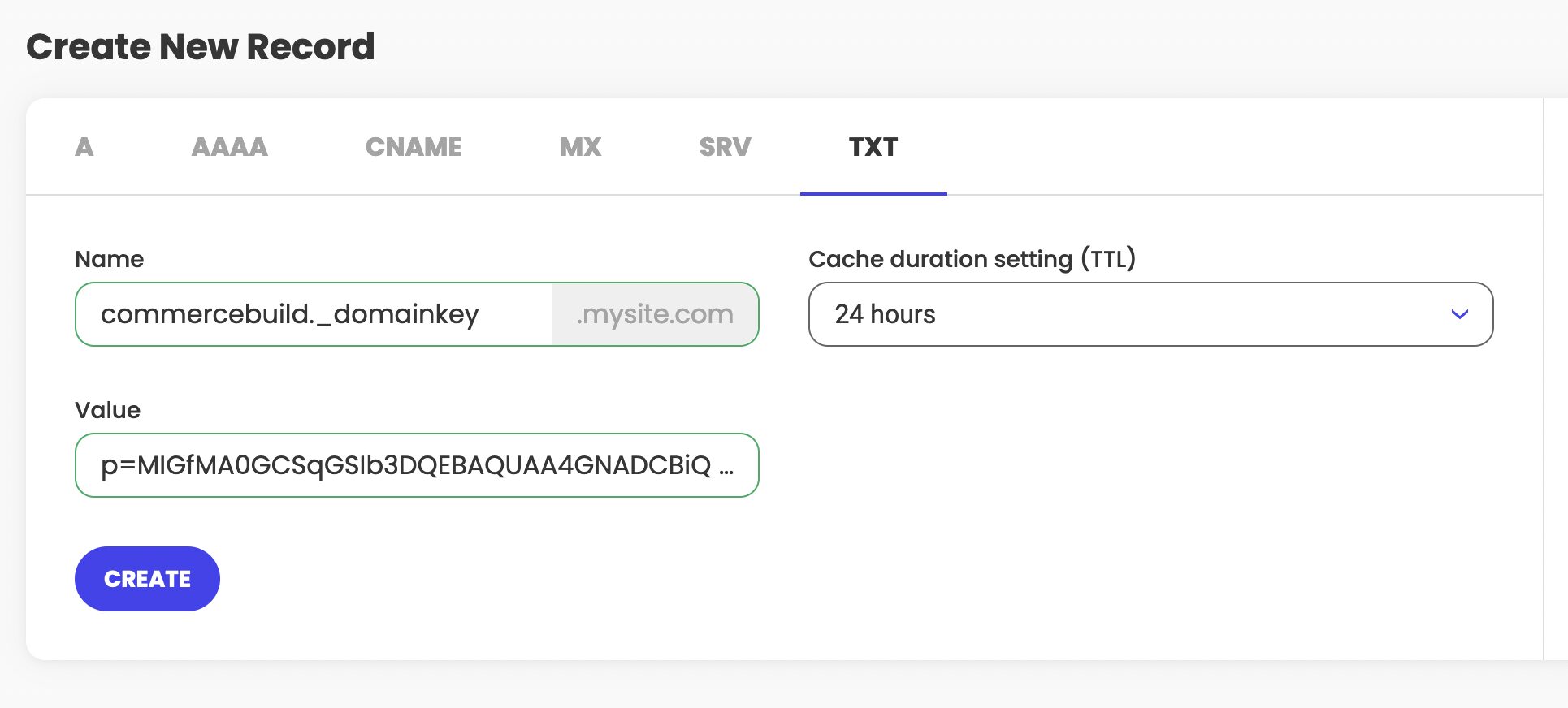
Add a new TXT record. Leave your SPF record as it is.
- Type: TXT
- Name / Host:
commercebuild._domainkey - Value: the text below, on one line
Most panels add your domain for you. You enter commercebuild._domainkey, and the saved name is commercebuild._domainkey.yourdomain.com. If the panel asks for the full name, include your domain.
p=MIGfMA0GCSqGSIb3DQEBAQUAA4GNADCBiQKBgQDP4AsTvzBj5fkic7IPZXa9uQ+73AUkze5yuQyO616qWhYIADIruP5oFP8s+acUP+n4bAUovqXWzx0Cs/ZSxAwcDLcXcYM+jipTYnH8z3BWSxpZPaf+muzH7lWEF3eWMf1jGhvQQpdFAttX4V5N/xl6yBAqKflsLKphf4OOx+G7zwIDAQAB
Send as noreply@commercebuild.com instead
To skip the DKIM record on your own domain, send store mail as commercebuild. In the store admin, open Email Settings at /admin/msite/email. Set both System From Address and System Reply-To Address to noreply@commercebuild.com.
Customers then see noreply@commercebuild.com as the sender. In Gmail, the message details show signed-by: commercebuild.com.