
Overview
This article explains the behavior of each batch tool available under Catalog > Products > Tools > Custom URL Setting. For basic setup and enabling Custom URLs, see Custom URLs for Product Permalinks.
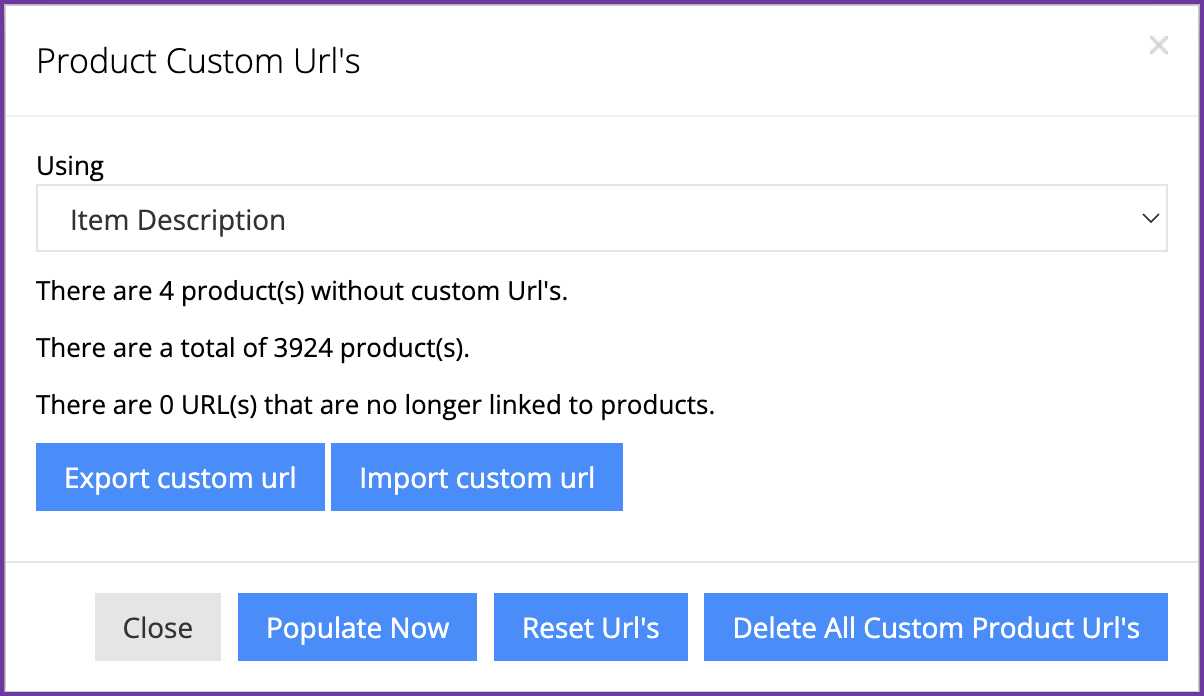
Populate Now
Generates custom URLs from the selected source (Item Description or Item Secondary Description) and assigns them to products that do not already have a custom URL. Existing custom URLs are left unchanged.
Key points:
-
Only fills blank/unset custom URLs, it does not overwrite manually set values.
-
Redirects are created from previous system-generated URLs to the newly populated custom URLs.
Tip: If you need to overwrite existing custom URLs for selected products, use Export/Import Custom URL. To overwrite existing custom URLs across all products with description-based values, use Reset URLs.
Reset URLs
Applies description-based custom URLs across all products:
-
Products that already have a custom URL are reset to a description-based custom URL.
-
Products with a blank custom URL are filled with a description-based custom URL.
-
Previous custom URLs will return 404, no automatic redirects are created.
If you need old URLs to keep working after a reset, add them manually under System → Redirects or via redirect import.
Delete All Custom Product URLs
Removes all custom URLs from all products.
-
Previous custom URLs will return 404, no automatic redirects are created.
-
To preserve old URLs, add redirects manually under System → Redirects before running this action.
Delete Unlinked URLs
Removes orphaned URL/route records left in the database after products have been removed from Commercebuild.
-
The dialog displays the count of orphaned records (e.g. "5,547 URLs are no longer linked to products").
-
It only deletes routes for products that no longer exist — it does not affect custom URLs on active products.
-
It does not remove entries under System → Redirects. Existing redirects continue to work.
-
Safe to run as routine cleanup.
Export Custom URL / Import Custom URL
Use these tools to update custom URLs for specific products in bulk.
-
Export downloads a file of current custom URL assignments.
-
Import uploads updated custom URLs from the edited file.
-
Bulk Import does create automatic redirects from previous URLs to the new ones (same behavior as changing a custom URL on the individual product Meta tab).
-
Custom URLs should be unique. Check your import file for duplicates before uploading, duplicate URLs can cause 404 errors.
To manually add redirects, go to System → Redirects. See How To Use Redirects for details.
Conclusion
When working with Custom URL batch tools, keep these key points in mind:
-
Populate Now is safe to run, it only fills blank custom URLs and creates redirects from previous URLs.
-
Import Custom URL is the best option for updating specific products in bulk, and it also creates redirects automatically.
-
Reset URLs and Delete All do not create redirects, always add redirects manually under System → Redirects before running these if you need old URLs to keep working.
-
Delete Unlinked URLs is safe routine cleanup and does not affect live products or existing redirects.
When in doubt, export your current custom URLs first as a backup before running any batch operation.