
Overview
Exporting orders from your webstore is quick and flexible. Whether you want a filtered list of web orders or a complete export of all orders (including offline and online), the system gives you full control.
Your export file will include available customer details such as:
- Customer name
- Phone number
- Billing and shipping addresses
- Other relevant order information
In this guide, we’ll walk through:
- How to export filtered web orders
- How to export all orders (online and offline)
- How filtering works in both sections
Exporting Web Orders from Order Queue
If you want to export web orders with specific filters (like date range or status), this is the best method.
Step 1: Navigate to Order Queue
Go to: Sales > Order Queue
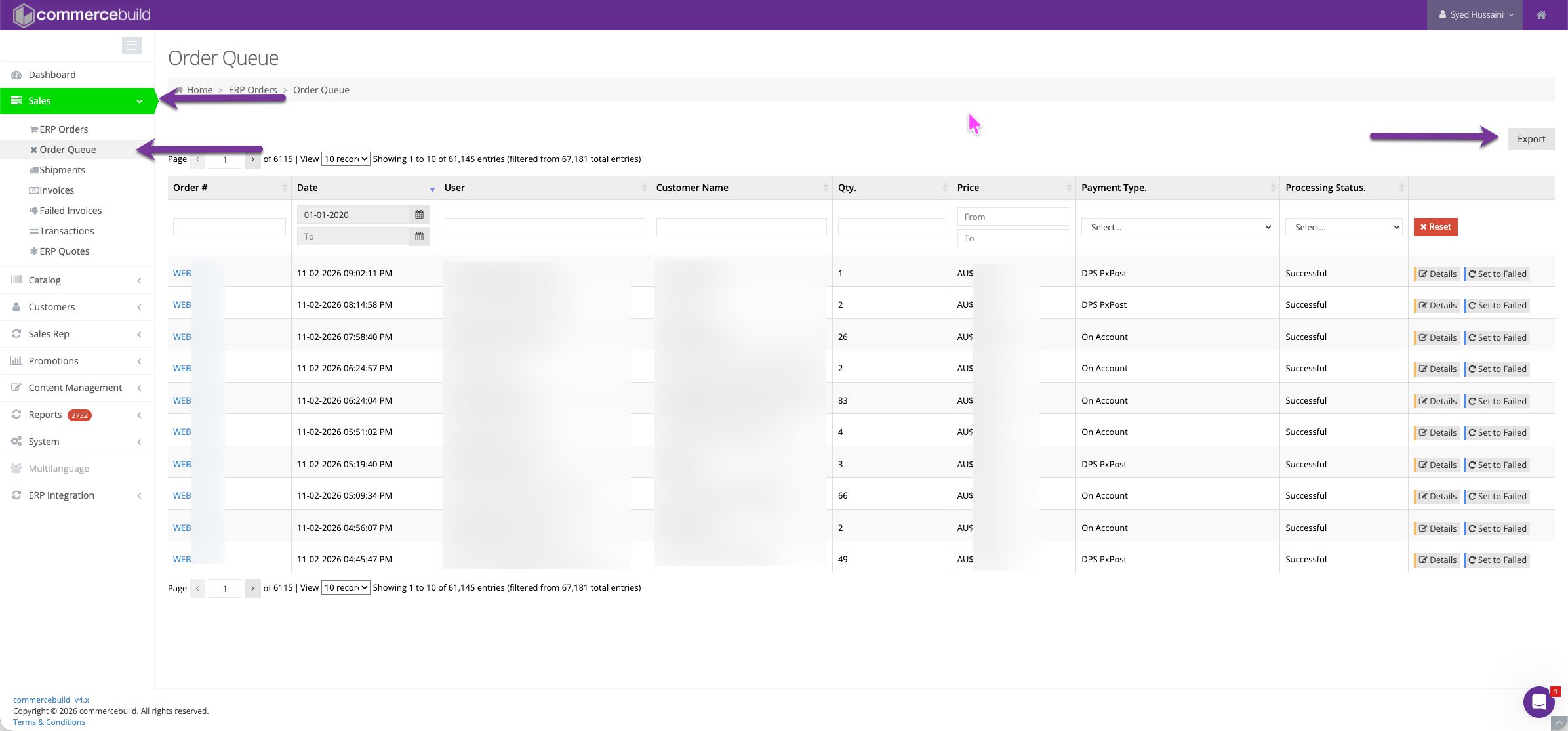
Step 2: Apply Filters (Optional)
At the top of the page, you can filter orders using available fields such as:
- Date range
- Order status
- Customer details
- Any other available filter criteria
Set the filters based on what you need.
Step 3: Export the Orders
Click on the Export button located in the top-right corner.
You can:
- Export only the filtered results
- Export all listed orders
The exported file will include available customer details like phone numbers and addresses along with order data.
Exporting All Orders from ERP Orders
If you want to export all types of orders, including both web (online) and offline orders, use this method.
Step 1: Navigate to ERP Orders
Go to: Sales > ERP Orders
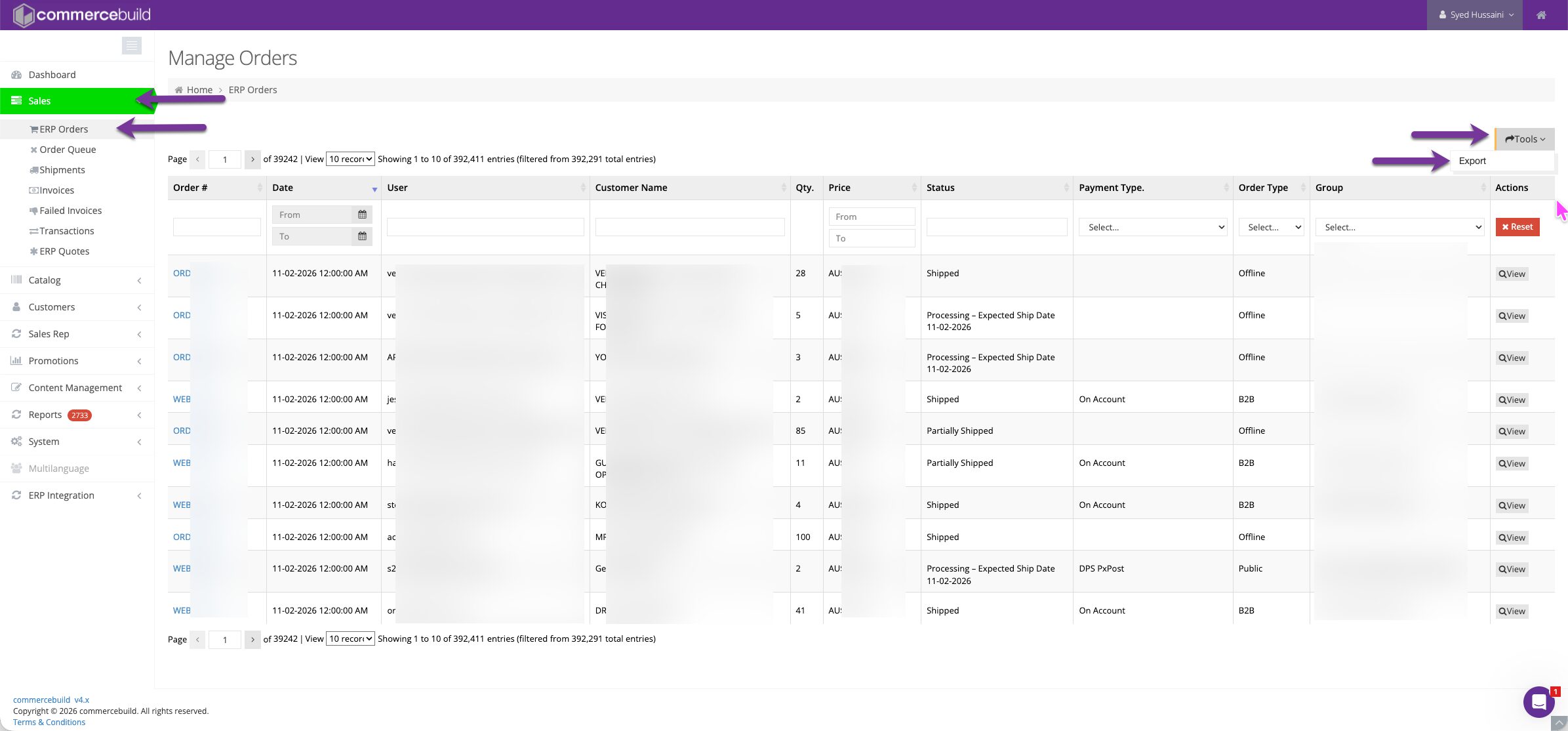
Step 2: Apply Filters (Optional)
Just like in Order Queue, you can apply filters here as well.
You can narrow down orders by:
- Date range
- Order type
- Customer
- Status
- Other available fields
This gives you full flexibility before exporting.
Step 3: Export the Orders
Click on: Tools > Export (top-right corner).
From here, you can export:
- Filtered orders
- All orders (including both online and offline orders)
This export will also include available customer details such as phone numbers and billing/shipping addresses.
Conclusion
Exporting orders from your webstore is simple and flexible.
- Use Sales > Order Queue if you want to export web orders specifically.
- Use Sales > ERP Orders > Tools > Export if you want to export all order types, including offline and online.
Both sections allow filtering before export, and both include available customer details in the generated file.
This makes reporting, reconciliation, and data analysis smooth and efficient. If you ever need help with filtering or exporting, we’re always happy to help