
Overview
commercebuild allows you to display a customer-specific logo when a customer logs into the webstore. This is useful when different customers or facilities need to see their own branding instead of the main site logo after logging in.
Customer-specific logos are managed at the ERP customer account level. If no logo is set for a customer, the site will automatically fall back to the default site logo, so there’s no risk of a missing or broken logo.
Steps to Change a Customer-Specific Logo
- Log in to the Store Admin
- Navigate to: Customers → ERP Accounts → Customer Listings
- Locate the customer account where the logo needs to be added or updated
- You can search using the customer code or scroll through the list
- Click Edit on the relevant customer account
- Look for the Customer Logo Settings
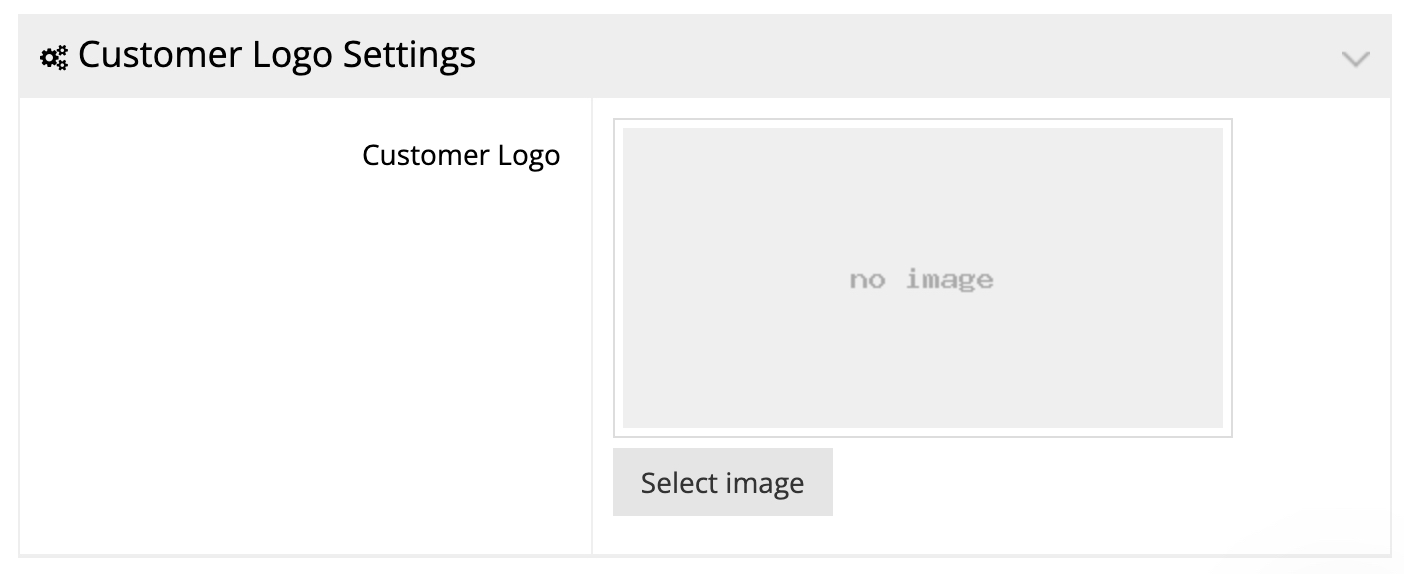
- If no logo is set you will see Select Image to upload a new logo image. Use that to upload a new logo image you want this customer to see after logging in
-
- If there is already a logo set, you would see Change, Cancel or Delete option. Use these options as needed to update the logo
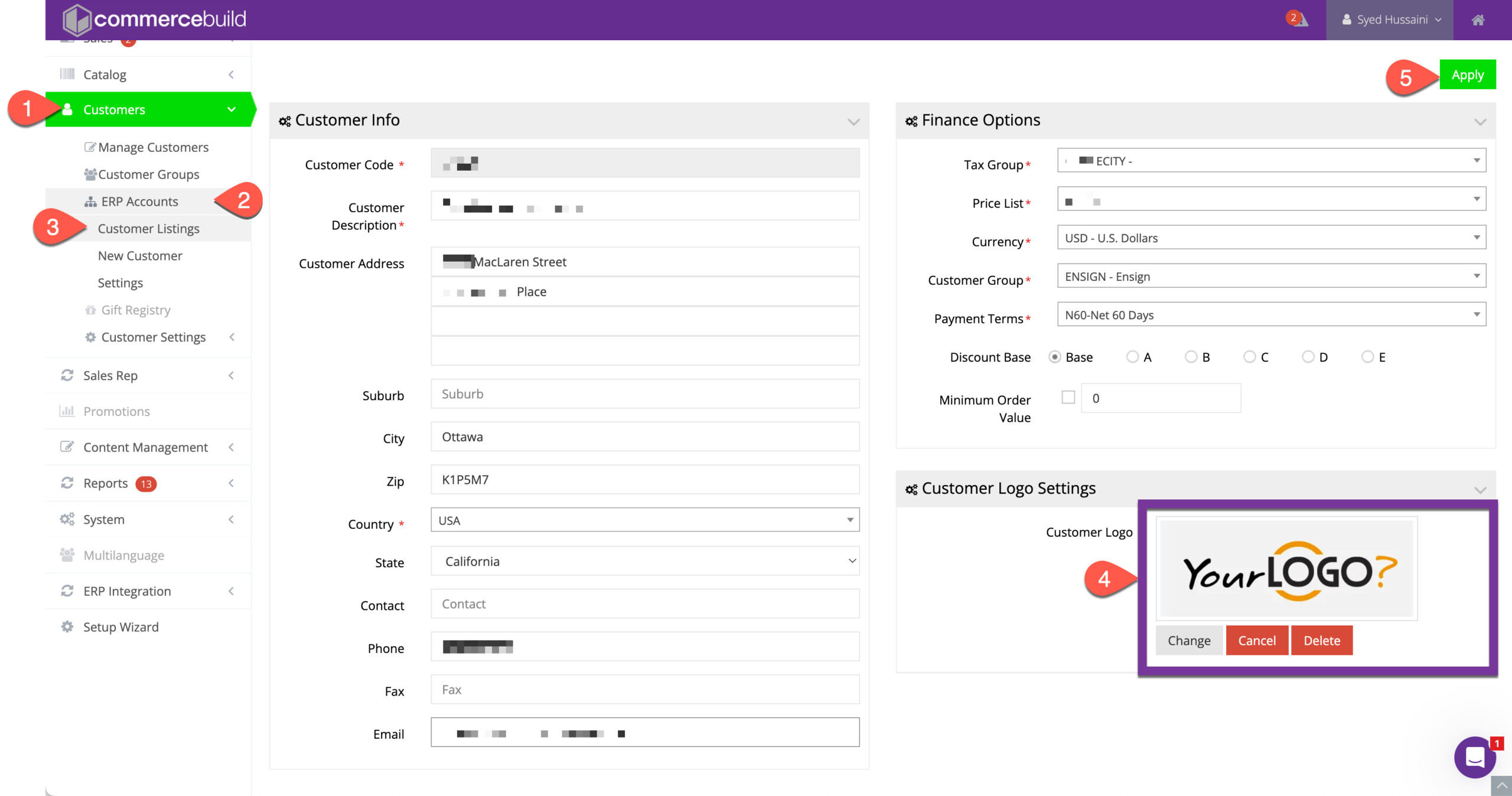
- Click on Apply to save your changes
What Happens Next
- The uploaded logo will appear after login for:
- All users linked to that specific customer account
- The global site logo remains unchanged for:
- Logged-out users
- Other customers
Best Practices
- Use a clear, web-friendly image (PNG or JPG recommended)
- Keep logo dimensions consistent with your site header for best appearance
- If a user is linked to multiple customers, the logo will update based on the active/assumed customer
Troubleshooting Tips
- If the logo doesn’t appear right away:
- Log out and log back in
- Clear the browser cache
- Double-check that the user is linked to the correct customer account