
To set up Maximum Order Quantity, Product Custom Fields are required and a billable add-on. If Custom Fields are not accessible under Catalog > Product Settings, please contact us so that we can assist you further.
Overview
Maximum Order Quantity (MOQ - MAX) allows you to limit how many units of a product a customer can add to their cart in a single order. This is useful when you want to control bulk purchases, manage inventory limits, or prevent accidental over-ordering. Once set, the store will automatically stop customers from adding quantities beyond the maximum value you define.
This is configured using Custom Fields at the product level.
When to Use Maximum Order Quantity
You may want to use MOQ - MAX when:
- A product has limited stock availability
- You want to restrict bulk purchases
- Certain items should only be sold up to a fixed quantity per order
- You want system-enforced limits instead of manual review
Steps to Enforce Maximum Order Quantity
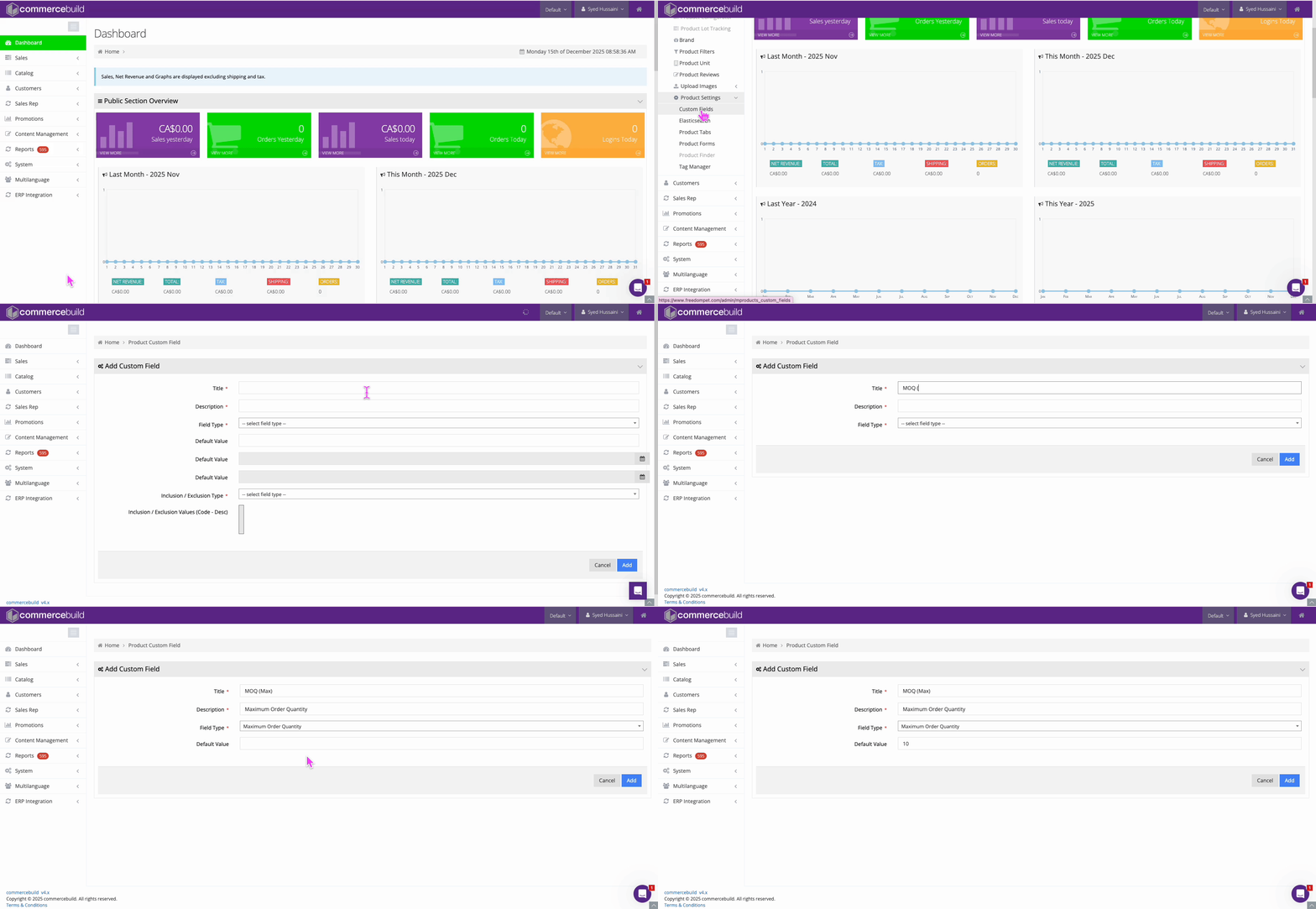
Step 1: Go to Custom Fields
- Log in to your Admin panel
- Navigate to Catalog → Product Settings → Custom Fields
Step 2: Create a New Custom Field
- Click Add New Custom Field
- Enter a clear Field Name (for example: Maximum Order Quantity)
- For Field Type, select Maximum Order Quantity
- Click on Add to save the custom field
Step 3: Apply the Field to Products
- Go to Catalog → Products
- Edit the product where you want to enforce a maximum quantity
- Locate the Custom Fields section
- Enter the maximum quantity allowed (for example:
10) - Save the product
What Happens on the Storefront
- Customers can add items to the cart up to the maximum quantity
- If they try to increase the quantity beyond the limit, the system prevents it
- No promo codes or custom scripts are required
Related Guide
If you also need to enforce a minimum quantity, refer to this How to Enforce Minimum Order Quantity (MOQ) guide.
The steps are nearly identical, the only difference is the field type selection.