
Overview
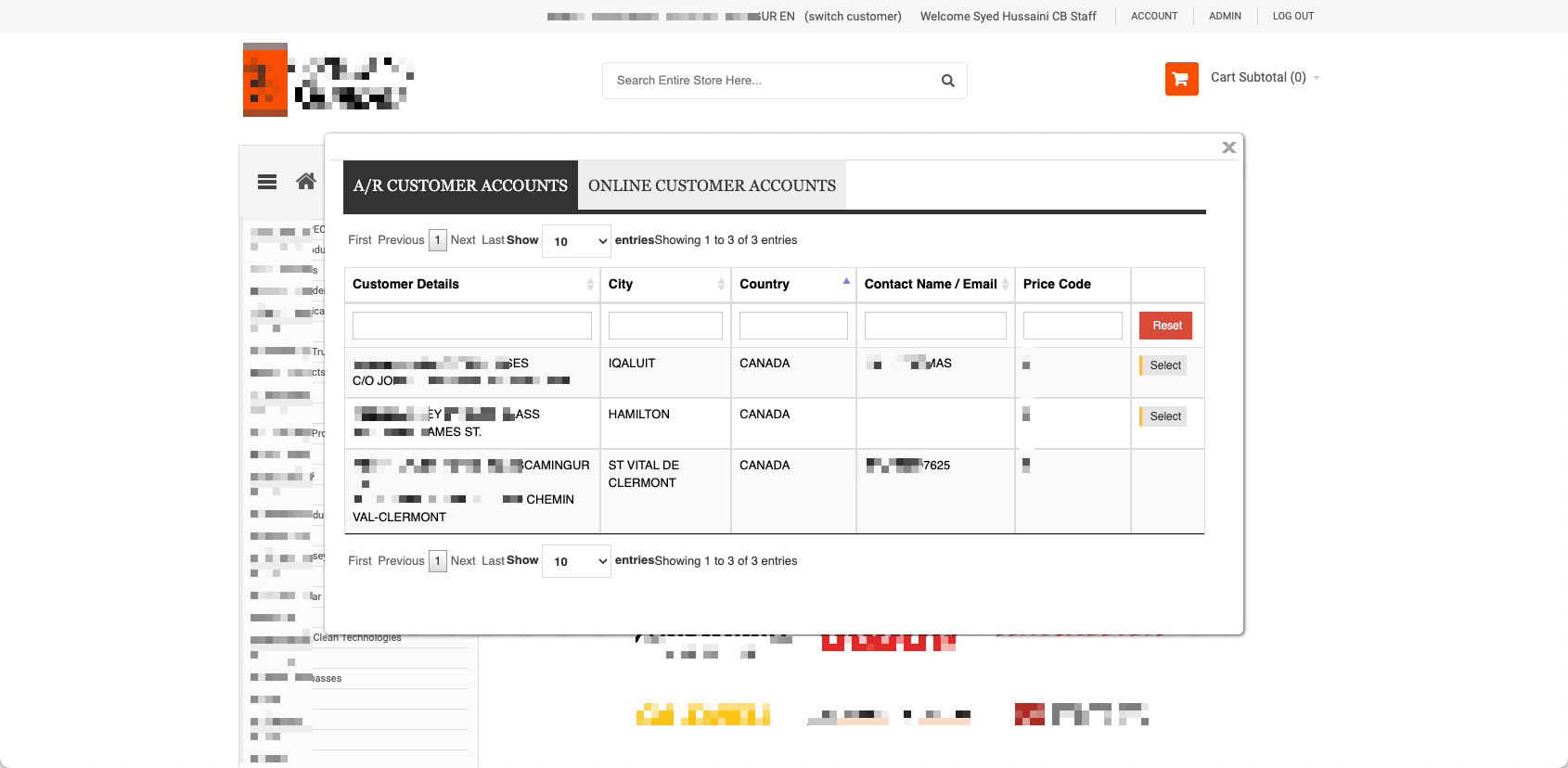
Sales Reps often need the ability to place orders on behalf of customers without having full administrator access to the store. commercebuild supports this through group-level permissions that allow Sales Rep users to switch between the customer accounts they’re linked to or, if needed, access all customer accounts.
This guide walks you through enabling the Switch User option for Sales Reps and shows how to configure which customers they’re allowed to switch to.
Step 1: Enable Order-on-Behalf Permissions for the Sales Rep Group
To make the Switch User option appear, start by updating the Sales Rep user group:
- Go to Admin → Customers → User Groups
- Select the Sales Rep group
- Scroll to the Sales Tools section
- Enable Allowed to change customer to Order on Behalf

This permission unlocks the Switch User feature so the Sales Rep can choose from their linked customers. Example of Switch User option:
Step 2: Allow Switching to All Customers (Optional)
If your Sales Rep should be able to switch to any customer in the system, not just customers linked to their account, you can enable an additional setting at the user level.
- Go to Admin → Customers → Users
- Edit the Sales Rep user
- Enable Allow All Customers
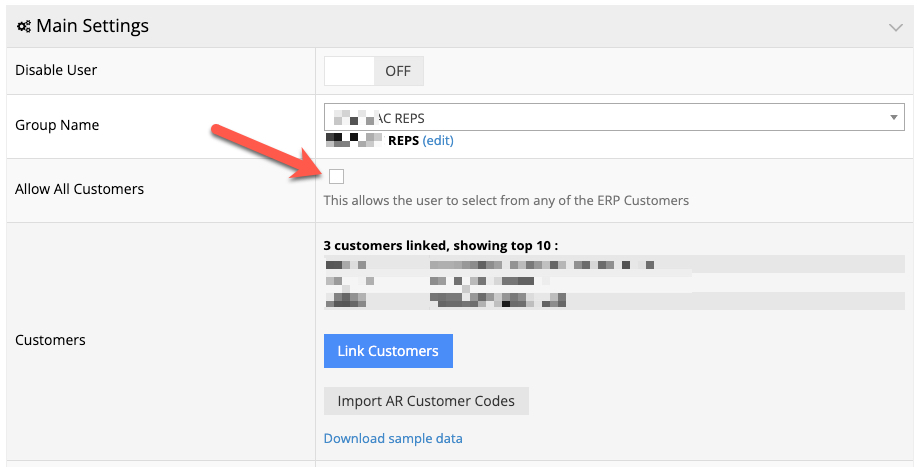
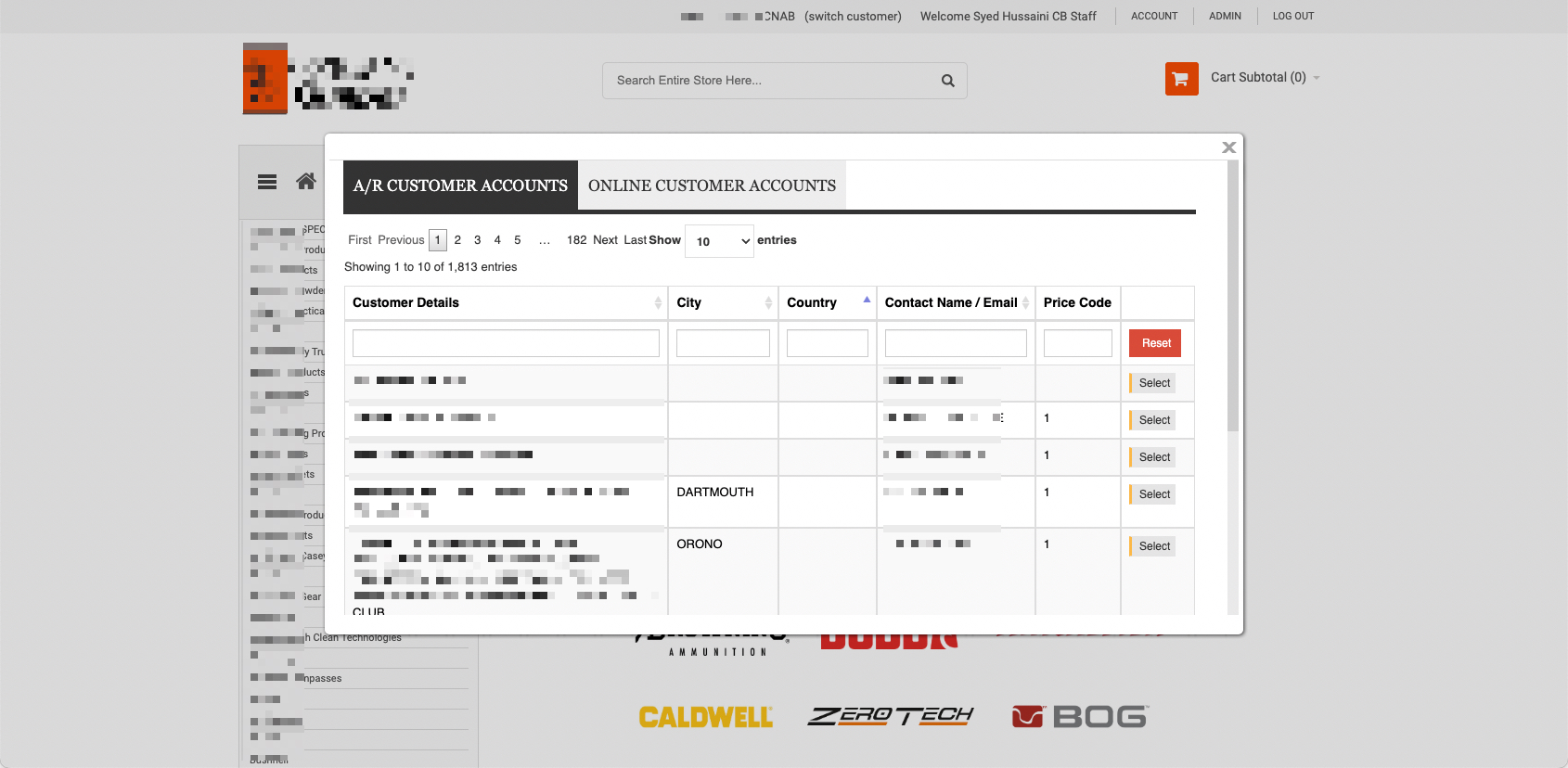
This expands their Switch User list to include every customer on the site. How the switch list looks once enabled:
How It Works
- With Allowed to change customer to Order on Behalf enabled →
The Sales Rep can switch only between the customers they are linked to. - With Allow All Customers also enabled →
The Sales Rep can switch to any customer account in the system.
These settings do not grant admin permissions, the Sales Rep only gains the ability to operate on behalf of customers.
Need Help?
If you’ve enabled these settings and still don’t see the Switch User option, feel free to reach out to commercebuild Support.